What Design is for
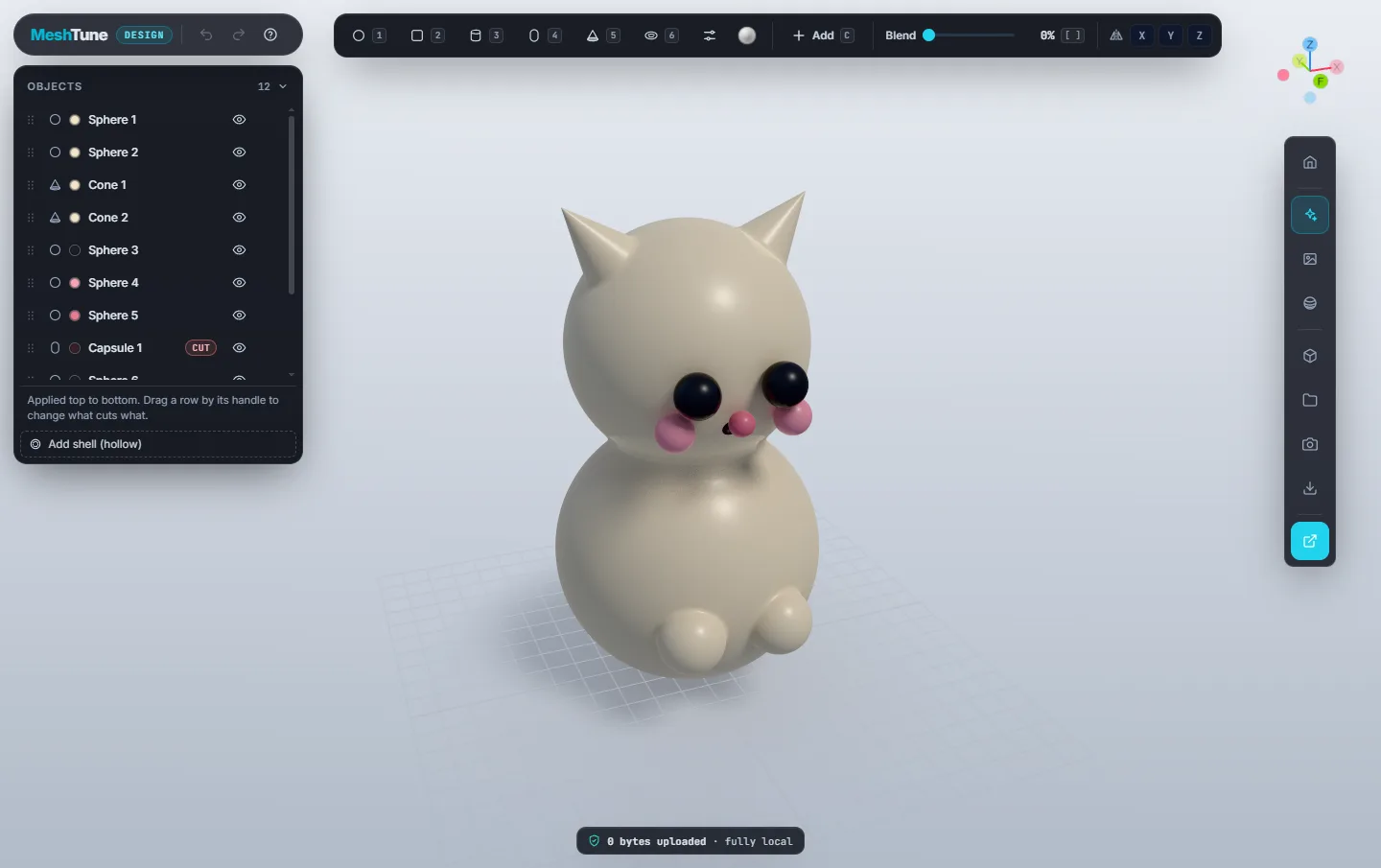
Design is for making functional and decorative parts for 3D printing without installing CAD software: brackets, stands, enclosures, knobs, spacers, organisers, figurines and toys. You work the way you would with building blocks. Each shape is either added to the part or cut from it, and you can soften the joins with a blend.
Every shape stays a live shape. A hole you cut ten steps ago can still be moved, widened or deleted, and edges and curves stay exact instead of turning into facets while you work. The part is turned into a printable mesh only when you export it, and that mesh is closed (watertight) by construction.
Design and the Viewer work as a pair
MeshTune has two apps for 3D printing, and they do different jobs:
- Design is where you make a part.
- The Viewer is where you check and prepare a mesh: printability analysis, wall-thickness heat map, print orientation, overhangs, build-volume fit, volume and mass, repair and decimation.
The Open in Viewer button connects them. Model the part in Design, click once, and the finished solid opens in the Viewer for checking before you slice it. See Open in Viewer.
What you need
- A laptop or desktop. Design needs a window about 900 px wide or more, so the tools, the handles and the model fit on screen together. On a smaller screen it shows a notice instead.
- A current browser with WebGL 2, such as Chrome, Edge or Firefox. The view is drawn on your graphics card, so a computer with a GPU gives the smoothest experience.
- A mouse is recommended. Left button models, right button orbits, middle button pans, and the wheel zooms.
The screen at a glance
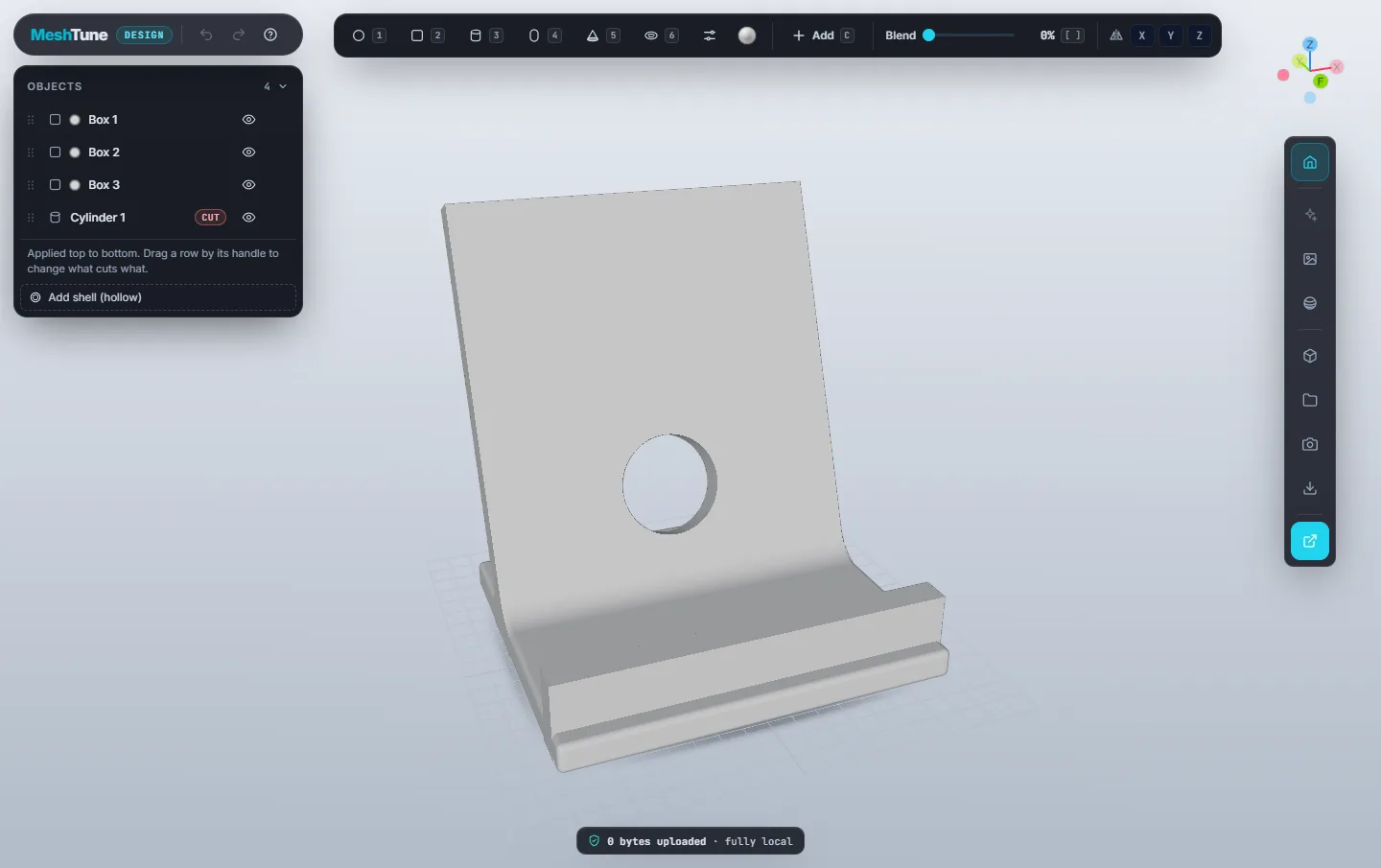
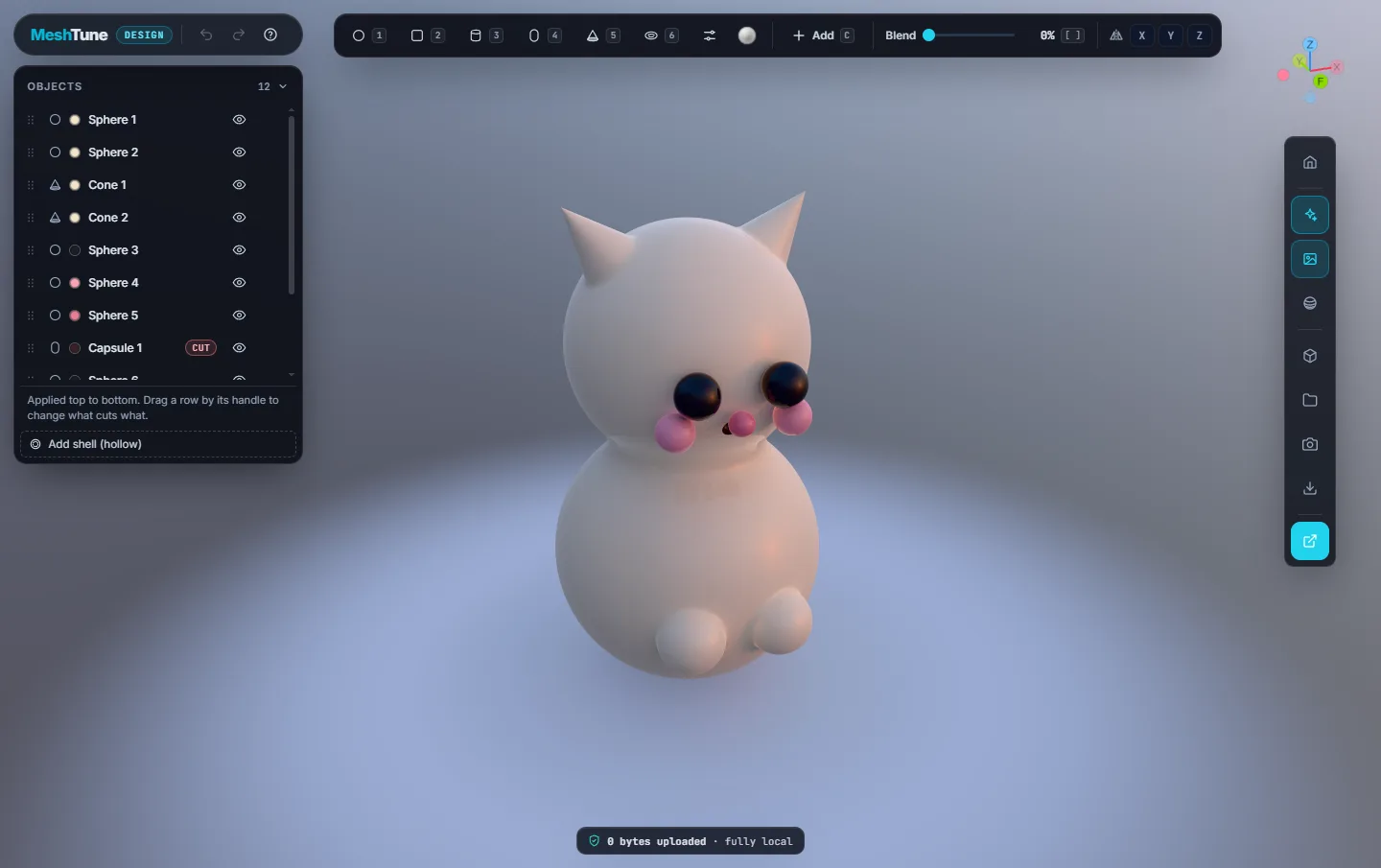
- Top left — brand and history. The MeshTune logo returns to the home page. Next to it are Undo and Redo, and the ? button, which opens the controls card.
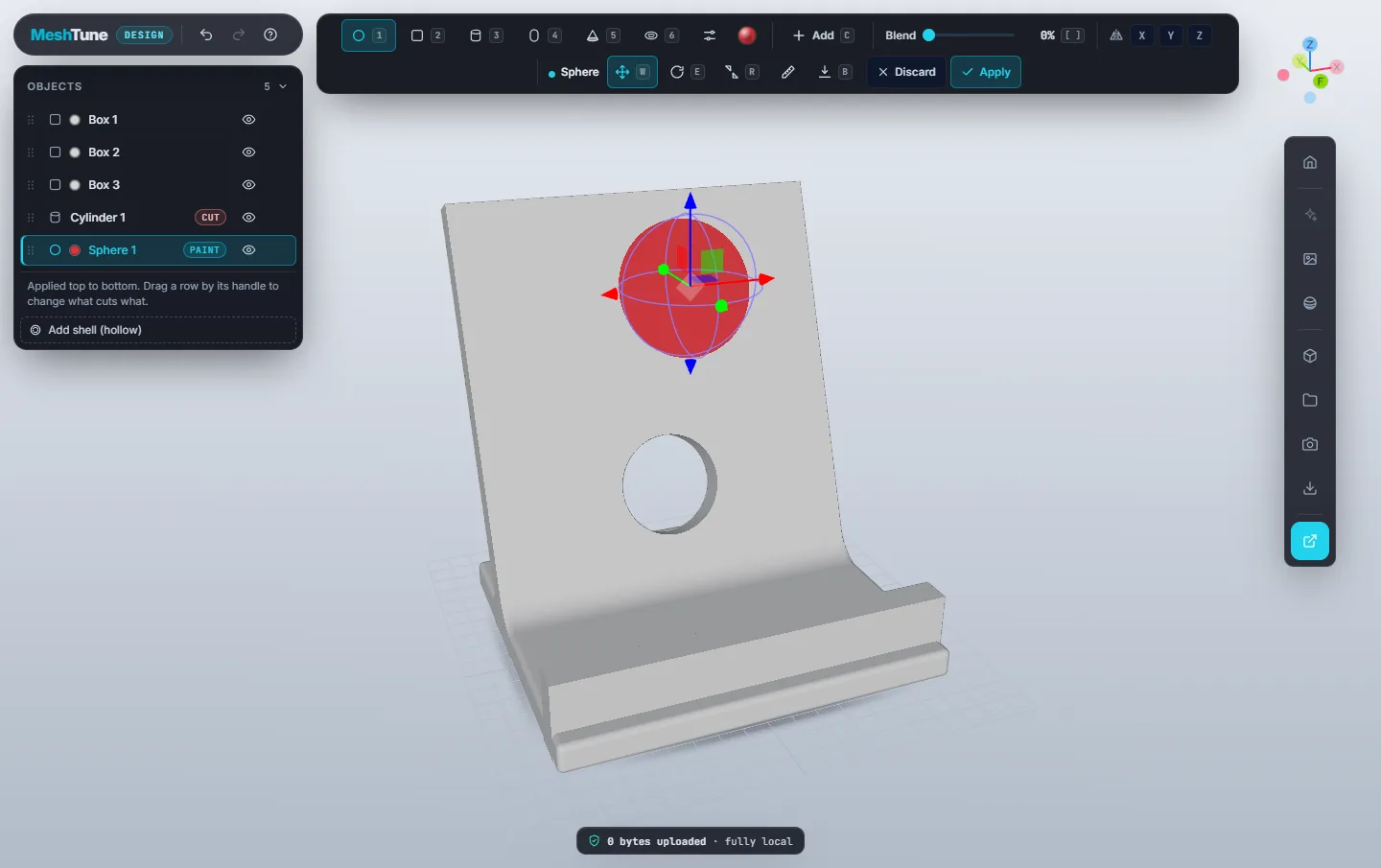
- Left, under the logo — Objects. Every shape in your part, in the order it is applied.
- Top centre — the shape bar. The six shapes, Shape options, Material, the Add/Cut switch, the Blend slider and the mirror axes. While a shape is being placed or edited, a second row appears with the handle modes, Transform, Sit on bed, Discard and Apply.
- Top right — the axis widget. Shows which way X (red), Y (green) and Z (blue) point. The side marked F is the front of your part. Click an axis to look along it.
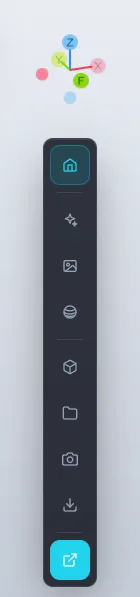
- Right — the tool rail. From top to bottom: Frame the model, Studio lighting, Environment, Inspect, Workspace, Project, Save image, Download mesh and, highlighted at the bottom, Open in Viewer.
- Bottom centre — privacy badge. A reminder that nothing leaves your computer.
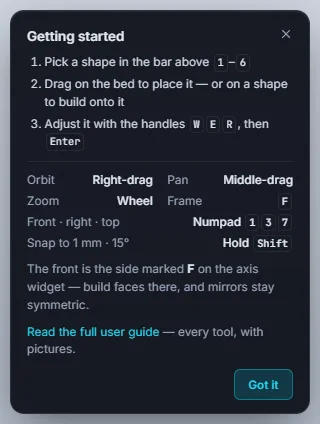
The first time you open Design, a Getting started card appears at the bottom left. Click Got it to close it. It won't return on its own, but ? or the ? button brings it back.
Quick start: your first part
A small box with a hole through it, in about a minute:
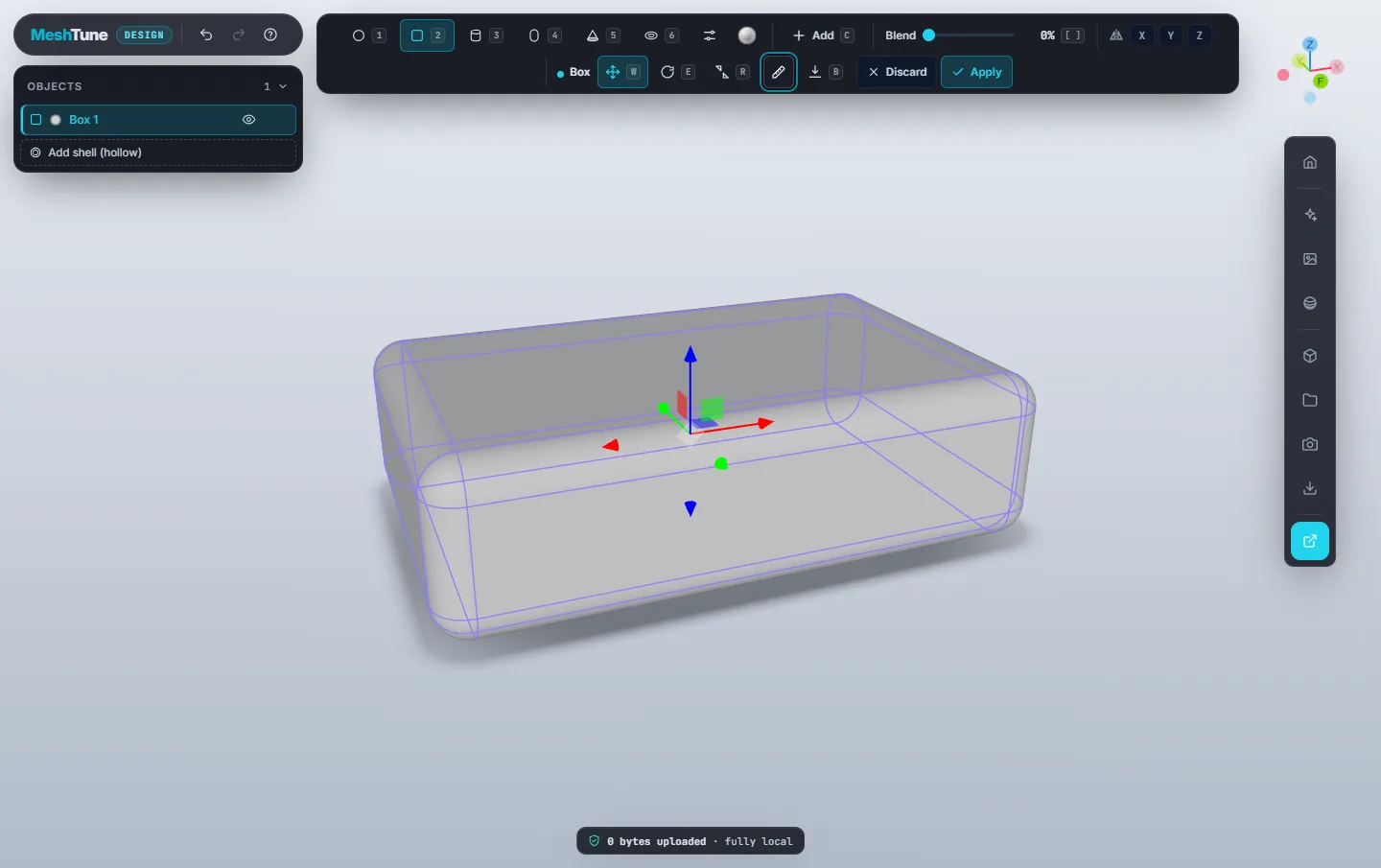
- Press 2, or click Box in the shape bar.
- Drag on the bed (the grid) to place a box. The further you drag, the bigger it gets.
- Click the Transform button (the ruler icon) and type a size, for example 70 × 45 × 20 mm. Press Enter after each number.
- Press Enter again, or click Apply, to keep the box.
- Press 3 for Cylinder, then C to switch from Add to Cut.
- Drag on the top of the box. A hole appears where the cylinder overlaps it. Press Enter to keep it.
- Open the Download menu on the rail and click STL.
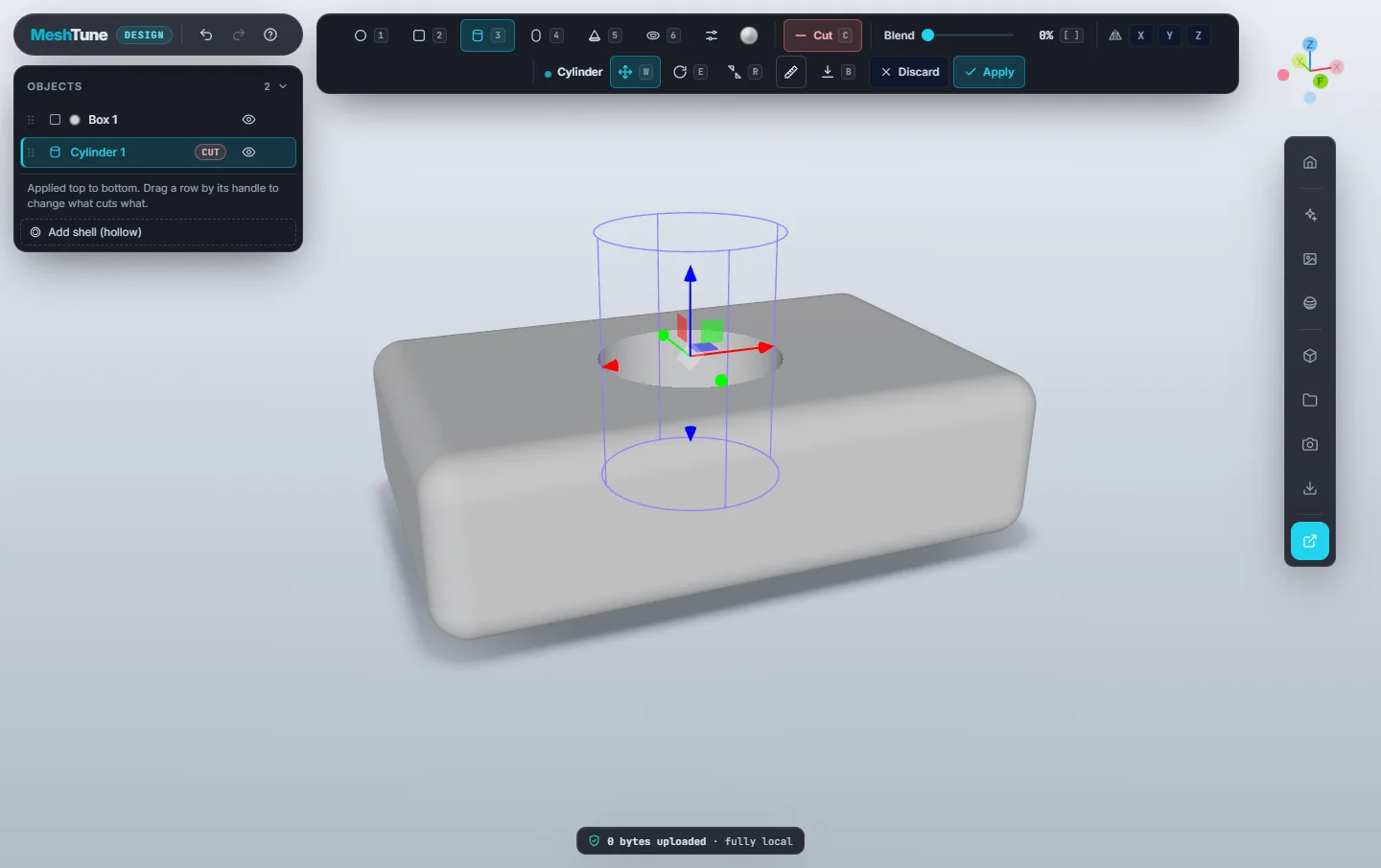
That's the whole workflow: pick, drag, adjust, apply. The rest of this guide covers each step in detail.
Moving around
| To | Do this |
|---|---|
| Orbit | Right-drag |
| Pan | Middle-drag |
| Zoom | Mouse wheel |
| Frame the selection | F frames the shape you are editing (or the whole part) from where you are |
| Frame the whole part | The Home button at the top of the rail, from the default angle |
| Front, right, top view | Numpad 1, 3, 7. Add Ctrl for back, left, bottom |
| Look along an axis | Click an axis on the axis widget |
The left mouse button is reserved for modelling, so a left-drag never moves the camera. On a touch screen, one finger models and two fingers move the camera. With a stylus, only the pen models, so a resting palm doesn't place shapes.
Placing shapes

There are six shapes, each with a number key: Sphere 1, Box 2, Cylinder 3, Capsule 4, Cone 5 and Torus 6. Picking one arms the shape tool. Then:
- Drag on the bed to place the shape sitting on the bed. Drag further for a bigger shape.
- Drag on an existing shape to build onto it. The new shape is turned to face out of the surface you started on, so a cylinder dragged onto a slanted face comes out square to that face.
- Click without dragging to place the shape at a standard size, ready to adjust.
- Hold Shift while dragging to snap the size to whole millimetres.
A newly placed shape is live: it shows a blue outline and handles, and the shape bar grows a second row of controls. Press Enter or Apply to keep it, or Esc or Discard to throw it away. Placing another shape automatically keeps the current one first.
The shape tool stays armed after you apply, so placing ten shapes takes ten drags. Press Esc again (with nothing live) to put the tool down.
Add and Cut
The Add / Cut switch in the shape bar (or C) decides what the next shape does:
- Add joins the shape to the part.
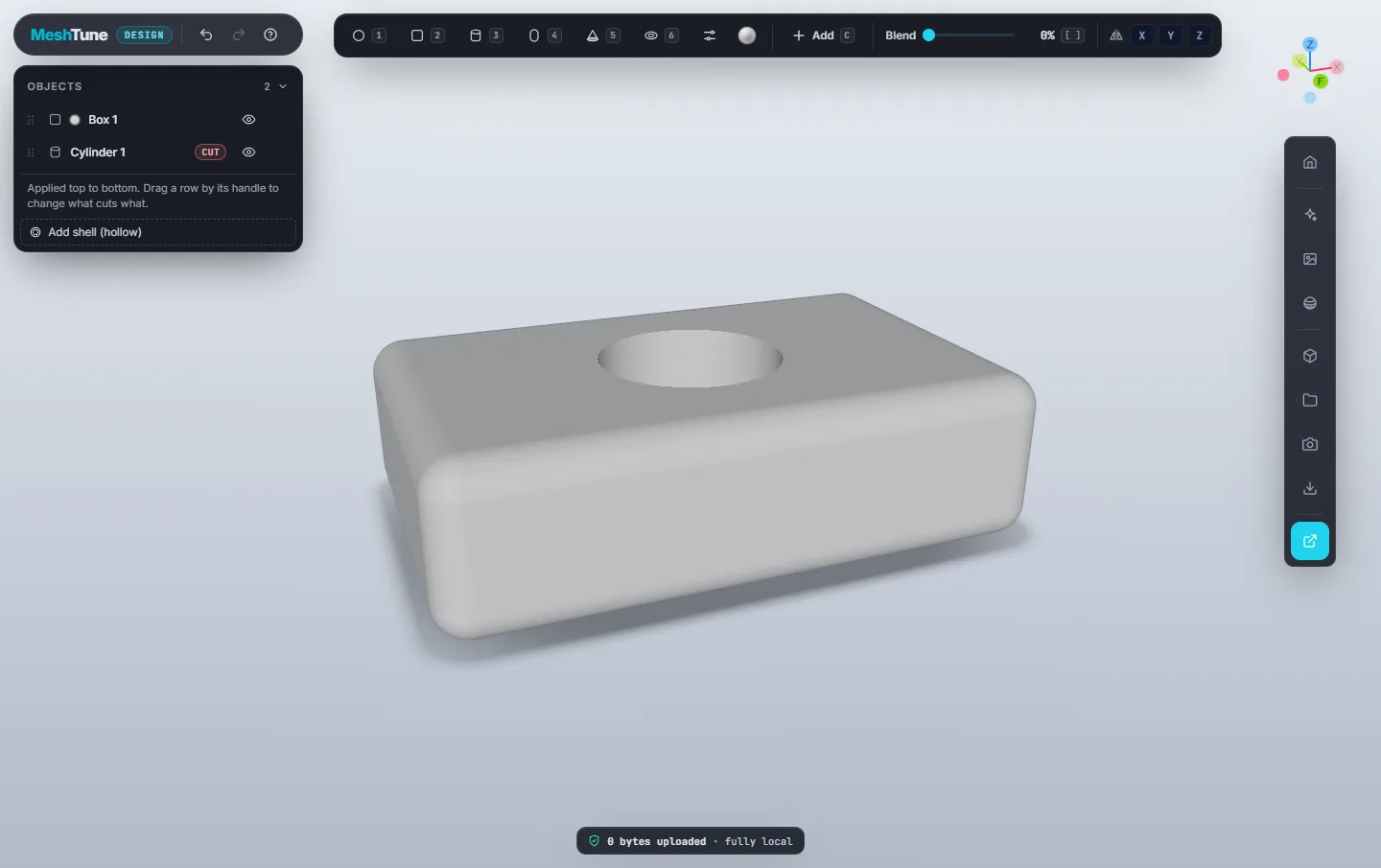
- Cut removes the shape's volume from the part. Use it for holes, slots, pockets, chamfers and recesses. The switch turns red while Cut is on.
You can flip a live shape between Add and Cut at any time. A cut only removes material from shapes above it in the Objects list. To make a cut go through a shape that was added later, drag the cut below that shape in the list.
Grooves: a cut that follows the surface
With Cut on, Shape options shows Cut depth (mm). At 0 the cut goes right through. Any other value makes a groove that cuts only that deep into the surface it crosses and follows its curve, which is the way to draw split lines and panel gaps on a curved shell.
Blend
Blend controls how far a shape melts into what it touches. At 0% the join is a crisp edge. Raise it and the shape flows into its neighbours with a smooth fillet. On a cut, blend rounds the edges of the hole instead.

- Drag the slider, or press [ and ] to change it by 5%. Add Shift for steps of 10%.
- Blend is a share of the shape's size, so it grows and shrinks with the shape. Scaling up a blended shape makes its fillet larger too.
- To set a fixed radius in millimetres, type it in Blend mm in the Transform panel.
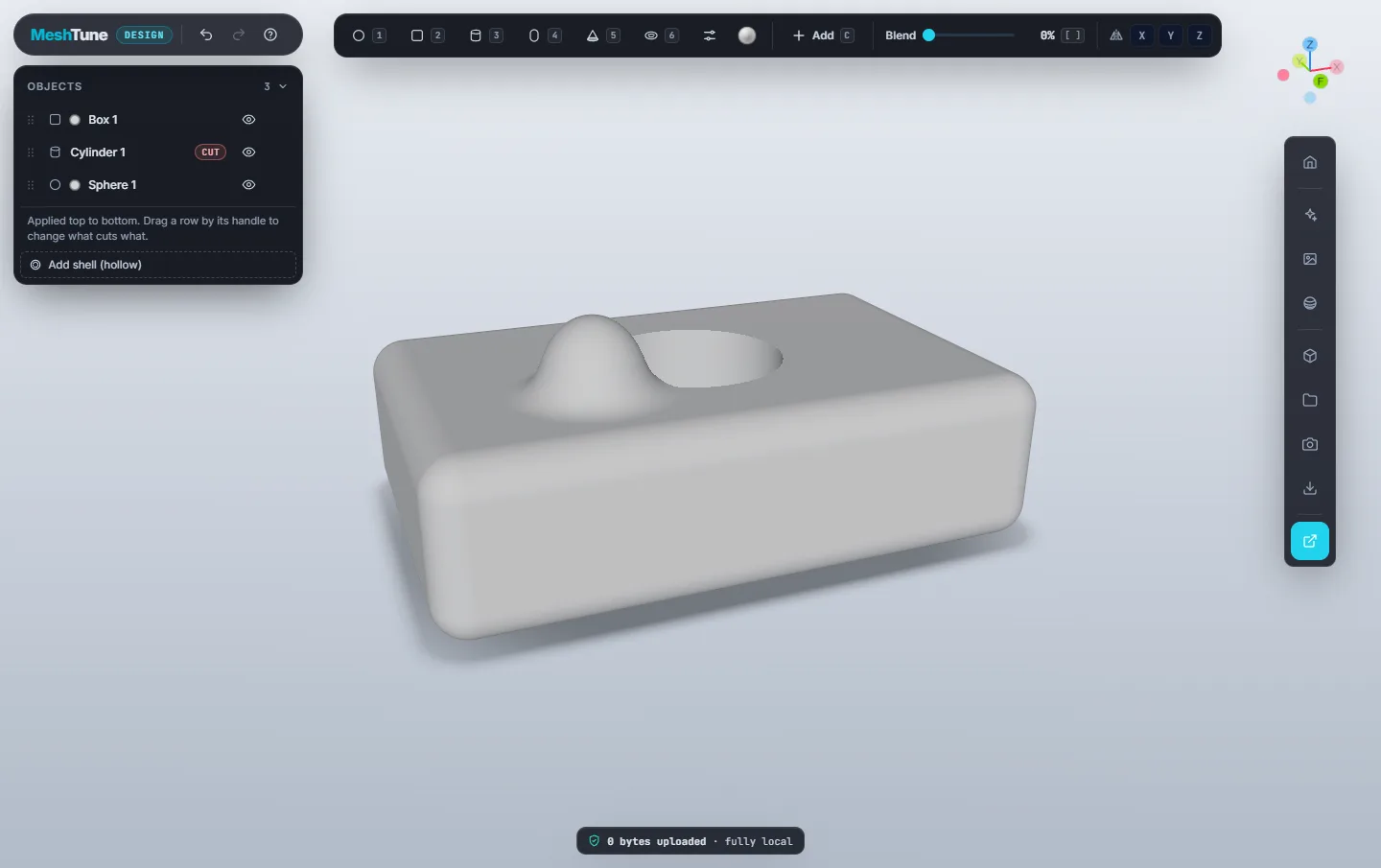
By default a blend fills inside corners but never makes the part bigger than its outer size, so parts that must measure true stay true. For flowing, organic forms, turn off Blends keep the outer size in Workspace.
Editing a shape
To change a shape you have already applied, click its row in the Objects list. It becomes live again, with its outline, handles and controls. Click the row again (or press Enter) when you're done.

The handles
- Move W: drag an arrow to slide along one axis, or a coloured square to slide in a plane.
- Rotate E: drag a ring to turn around that axis.
- Resize R: drag a handle to stretch along one axis.
- Hold Shift while dragging a handle to snap to 1 mm steps and 15° angles.
Other editing actions
- Sit on bed B drops the shape onto the bed and keeps it there while you resize it.
- Delete or Backspace deletes the shape being edited.
- Duplicate Ctrl+D makes a copy beside it, ready to move.
- Undo Ctrl+Z and Redo Ctrl+Y (or Ctrl+Shift+Z) work on every change, including deletes, reorders and New design. While a shape is live, the first undo takes back that shape.
Exact sizes: the Transform panel
Dragging is quick, but parts often need exact numbers. Open Transform (the ruler icon in the editing row) to type them.
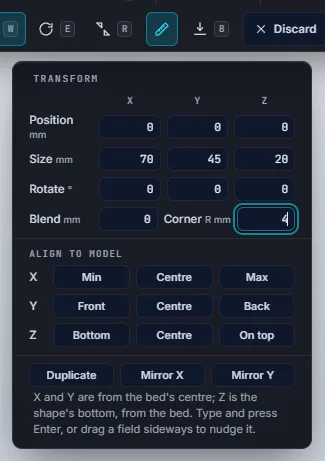
- Position (mm). X and Y are measured from the centre of the bed. Z is the height of the shape's bottom above the bed, so Z = 0 means sitting on the bed.
- Size (mm) is the shape's full width, depth and height.
- Rotate (°) sets the angle around each axis.
- Blend (mm) sets the blend as a radius rather than a percentage.
- Corner R (mm) sets a box's corner radius. It appears only for boxes.
Type a value and press Enter or move to another field. You can also drag sideways on a field to nudge its value (hold Shift for 10× steps, Alt for 0.1×), or click into a field and use ↑ and ↓.
Align to model
These buttons line the shape up with the rest of the part. In X: flush with its left edge (Min), Centre, or flush with its right edge (Max). In Y: Front, Centre or Back. In Z: level with its Bottom, centred on its height, or On top of it.
Copies
- Duplicate places a copy beside the shape and opens it to move.
- Mirror X and Mirror Y place a mirrored copy on the opposite side of the part, for one-off symmetric details. For symmetry while you work, see Mirror symmetry.
Shape options
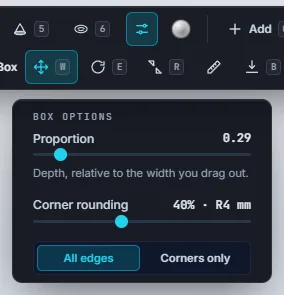
The Shape options button (sliders icon) holds the settings a drag can't express. They apply to the shape you are placing or editing.
| Option | What it does |
|---|---|
| Proportion | The shape's second dimension relative to the one you drag. Sphere: height to width (below 1 squashes, above 1 stretches). Box: depth to width. Cylinder: height to radius. Capsule: length to radius. Cone: height to base radius. Torus: tube thickness to ring radius. |
| Corner rounding (box) | Rounds the box's edges, shown as a percentage and as a radius in mm. |
| All edges / Corners only (box) | All edges rounds every edge. Corners only rounds just the four vertical edges, like a plate with rounded corners in plan. |
| Top & bottom edges R (box, Corners only) | A separate radius for the top and bottom edges, for example R28 corners with R3 edges. |
| Tip radius (cone) | Cuts the point off flat. 0 gives a sharp point, and larger values give a wider flat top (a truncated cone). |
| Cut depth (Cut only) | 0 cuts right through. Any other value makes a surface-following groove that deep. See Grooves. |
Colour and material
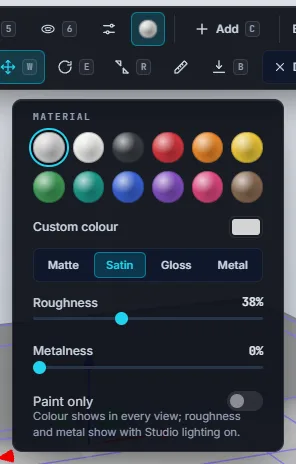
- Colour: pick one of twelve swatches (Clay, White, Graphite, Red, Orange, Yellow, Green, Teal, Blue, Purple, Pink, Brown) or choose a Custom colour.
- Finish: Matte, Satin, Gloss or Metal, or fine-tune Roughness and Metalness. Colour shows in every view. Roughness and metalness show when Studio lighting is on.
- Paint only: the shape adds and cuts nothing. It just colours the surface inside it, which is good for cheeks, freckles, stripes and labels. Blend softens the painted edge. Objects marks these shapes PAINT.
- Colour the cut's walls (Cut only): normally a cut takes the colour of whatever it cuts. Turn this on to give the walls of a hole or socket the cut's own colour.
Mirror symmetry
Tick X, Y or Z next to the mirror icon in the shape bar (M toggles X). Every shape you place or edit then gets a mirrored twin on the other side of the plane, and the twin follows every move. A translucent plane shows where the mirror is.
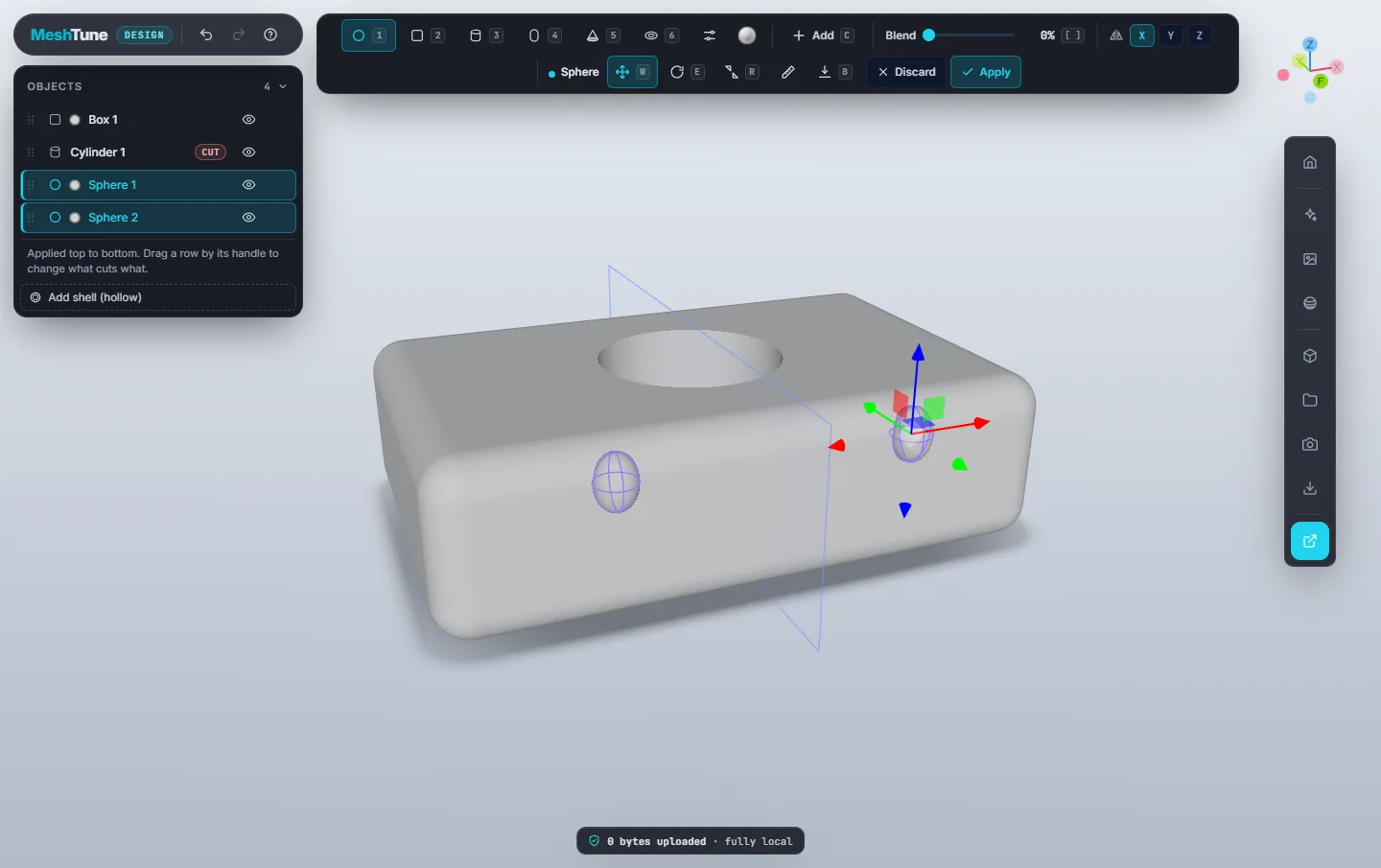
Build faces and details toward the side marked F on the axis widget (the front, −Y), so the left–right mirror (X) keeps them symmetric.
The Objects list
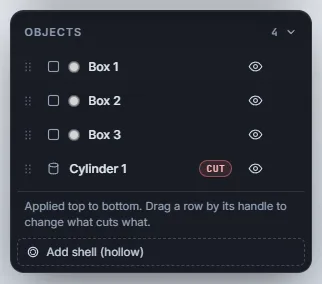
Objects, on the left under the logo, lists every shape. Each row shows the shape's type, its colour, its name, a tag (CUT, PAINT) when it isn't a plain add, and an eye button.
- Edit: click a row to open that shape, and click it again to finish.
- Rename: double-click the name, or press F2 on a row. Names are saved in the project and used in the print check's messages.
- Hide: the eye takes the shape out of the part (view and export) without deleting it. Click again to bring it back.
- Delete: the bin button on a row, or Delete while the shape is open. You can undo it.
- Reorder: drag a row by its grip (the dotted handle). You can also use ↑/↓ on the grip, or Alt+↑/↓ from anywhere in the row.
- Collapse: click the Objects header to fold the list away.
Hollowing a part (Shell)
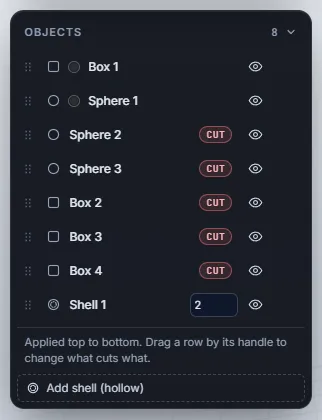
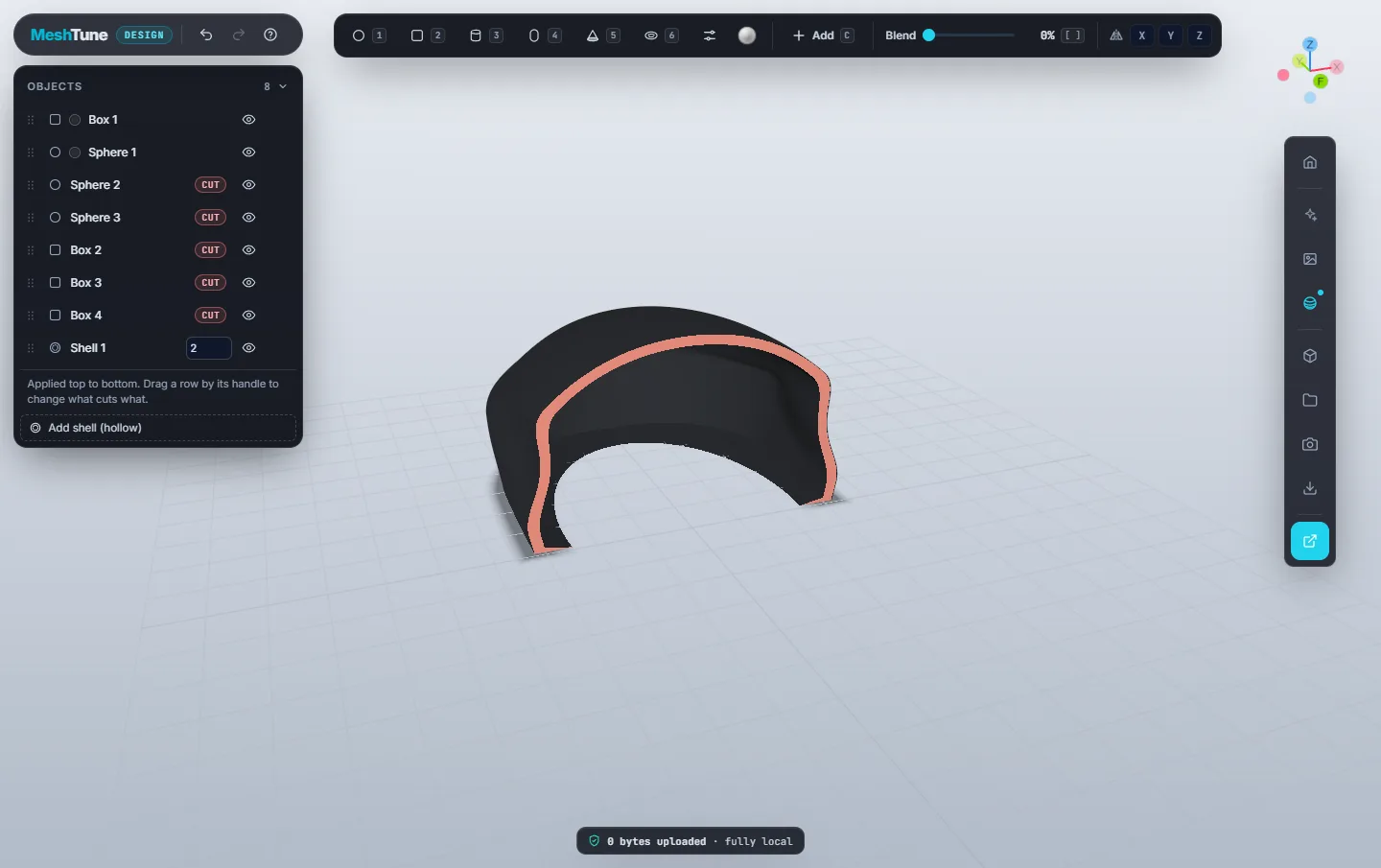
Click Add shell (hollow) at the bottom of Objects to hollow the part to a wall thickness. That saves material and print time, and leaves room inside for electronics.
- The shell hollows everything above it in the list.
- Set the wall thickness in mm right in the shell's row.
- Cuts placed below the shell go through the walls, which is how you make openings such as a scroll-wheel slot, a cable port or a battery door.
Inspecting surfaces
The Inspect button on the rail opens two tools for checking a design. Neither changes the export.
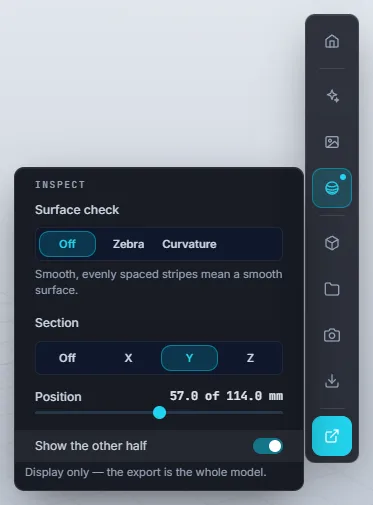
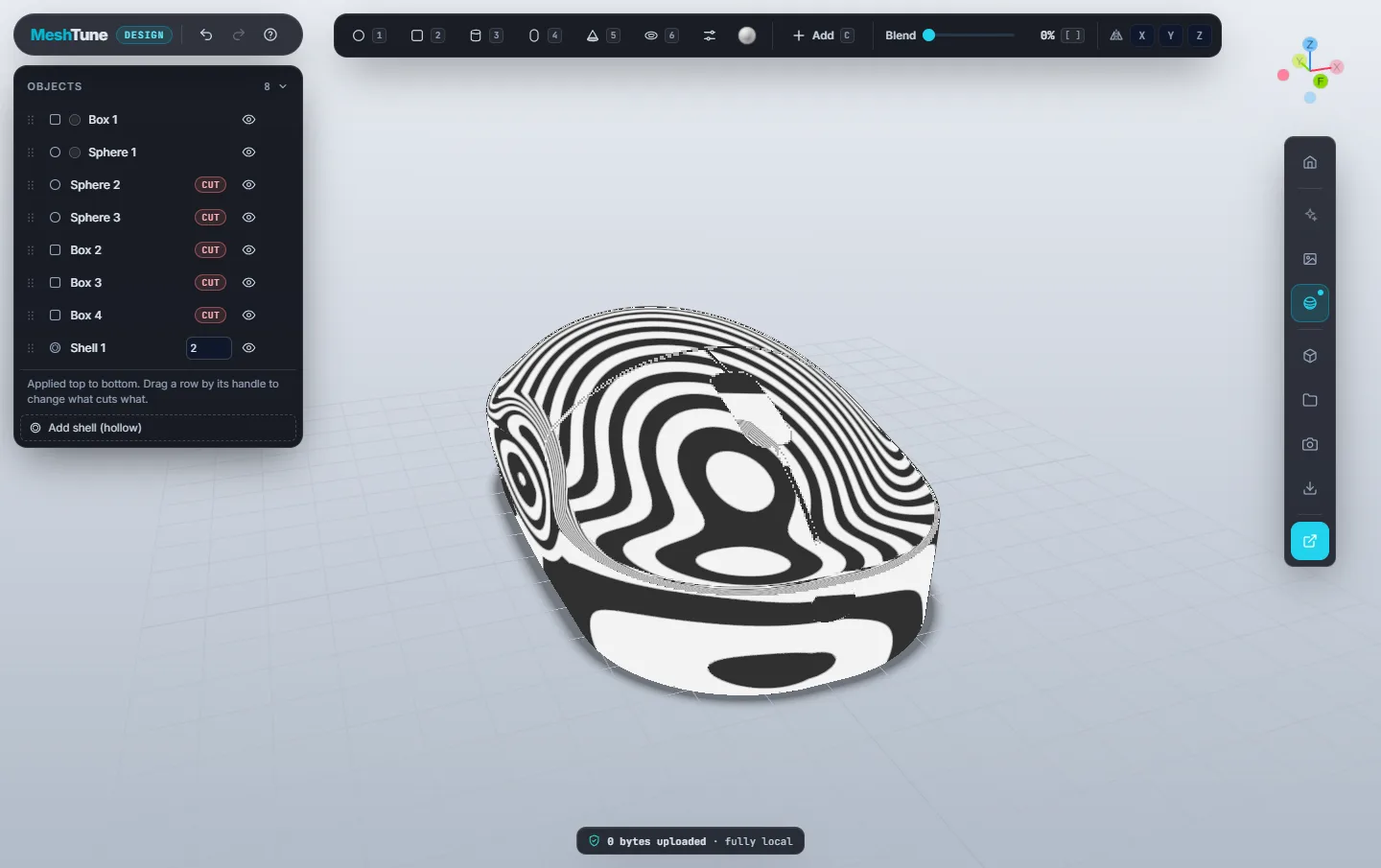
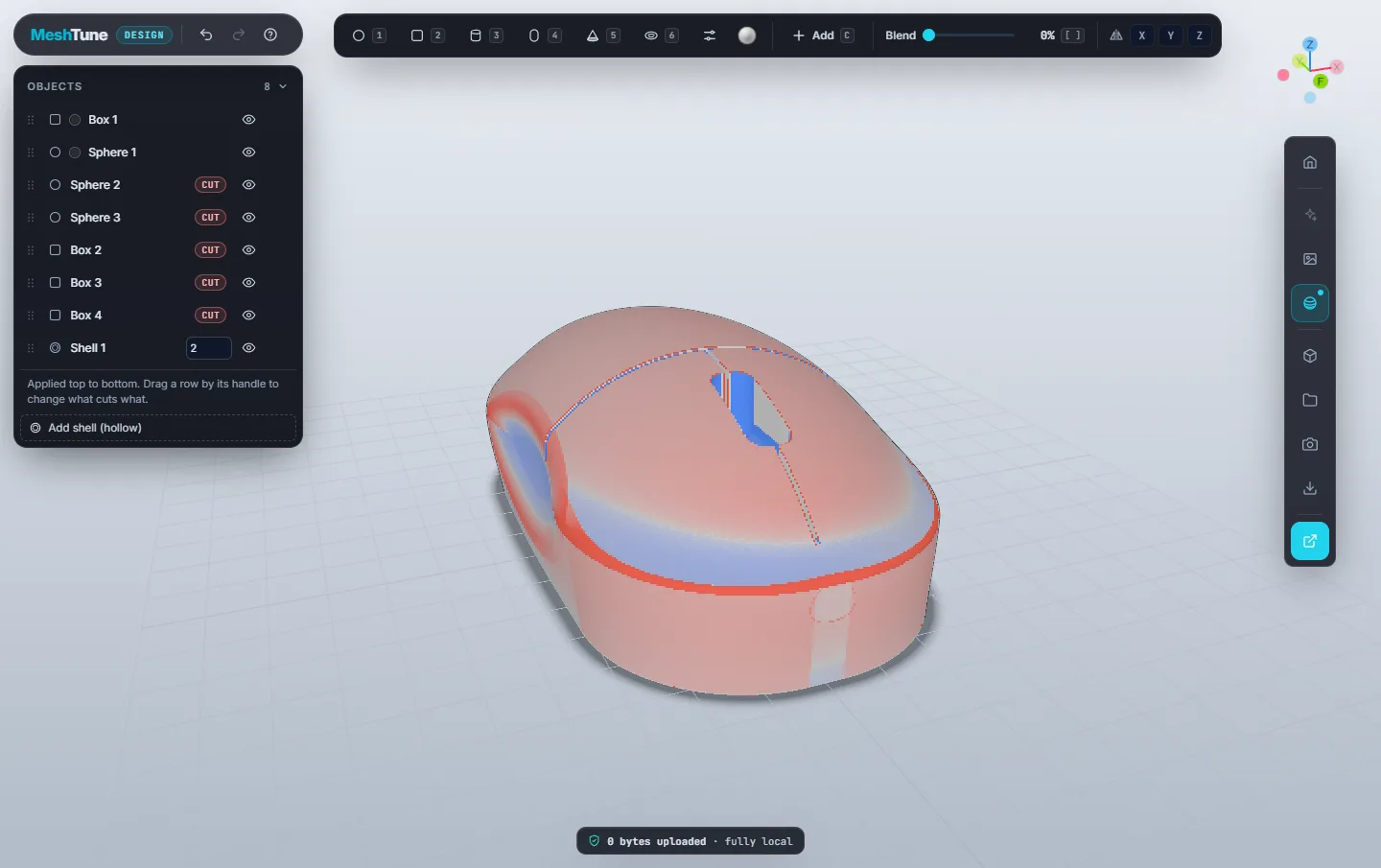
Surface check: Zebra and Curvature
- Zebra reflects light stripes off the surface. Smooth, evenly spaced stripes mean a smooth surface. A kink in a stripe is a crease, and uneven spacing is a jump in curvature.
- Curvature colours the surface: red where it is convex, blue where it is concave, grey where it is flat. Colour is full strength at a 10 mm radius or tighter.
Section
Pick X, Y or Z to slice the part and see inside it. X shows the side profile, Y the front profile, and Z a plan view. Drag Position to move the cut, and turn on Show the other half to flip which half is kept. Use it to check wall thickness, hidden pockets and how a shell meets a cut.
Studio lighting and environment
The Studio lighting button (sparkle icon) switches the view to a photographic render with soft shadows, reflections and materials. With it off, the view matches the Viewer exactly. The image keeps refining for a few seconds after the camera stops.
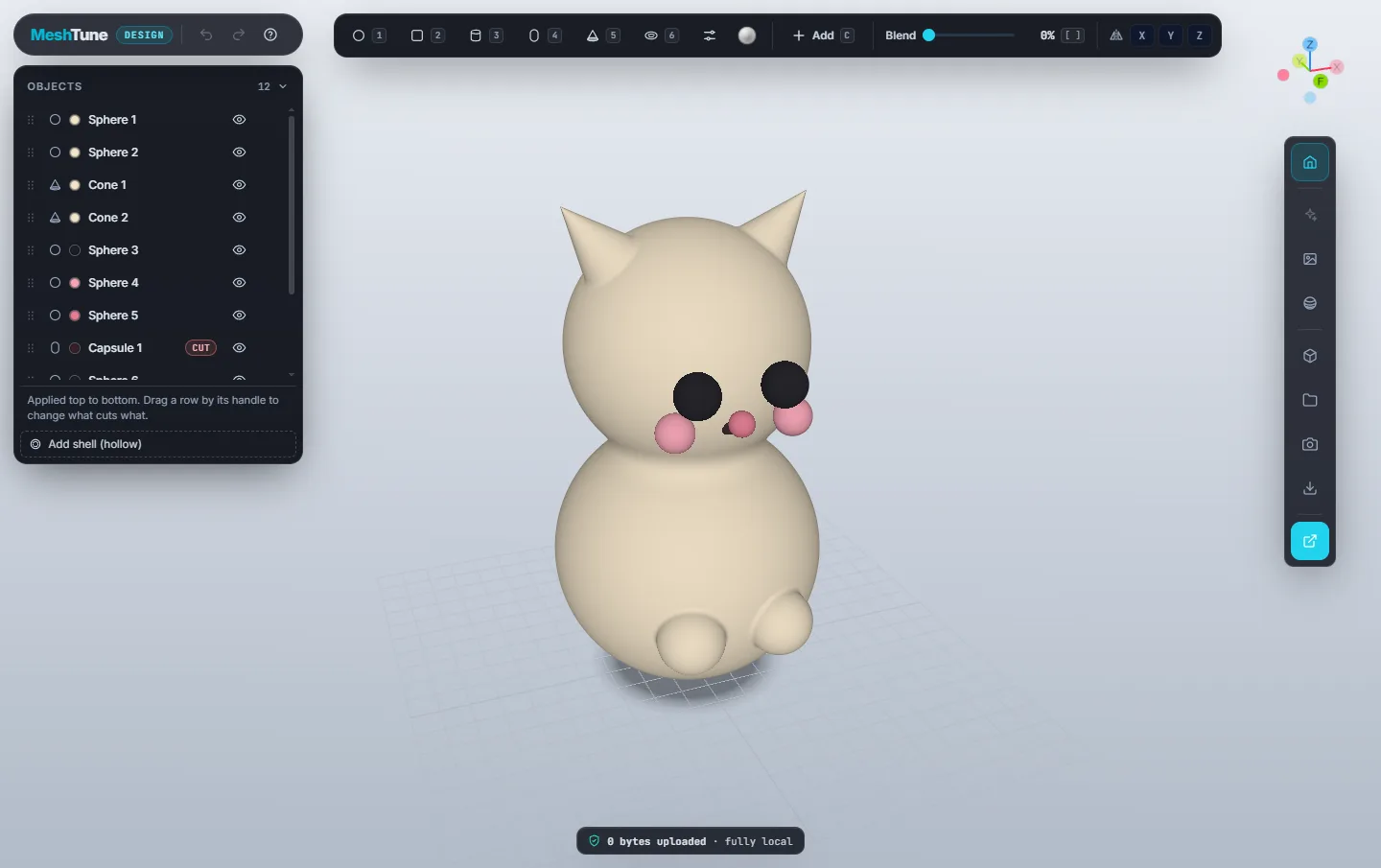
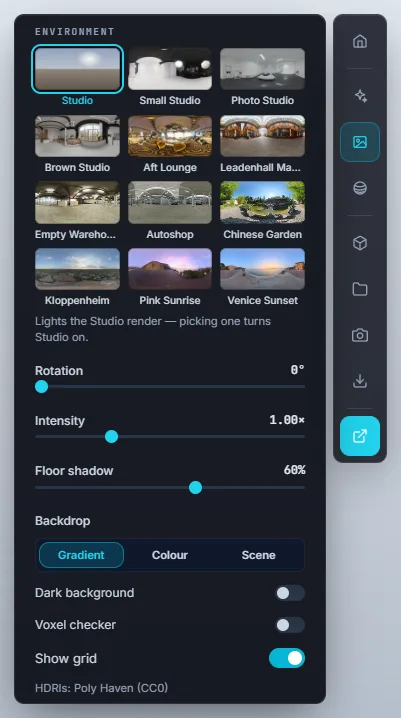
The Environment button opens the lighting and display settings:
- Lighting environment: the procedural Studio or one of eleven photographic environments (Small Studio, Photo Studio, Brown Studio, Aft Lounge, Leadenhall Market, Empty Warehouse, Autoshop, Chinese Garden, Kloppenheim, Pink Sunrise, Venice Sunset). Picking one turns Studio lighting on.
- Rotation turns the lighting around the model. Intensity makes it brighter or darker. Floor shadow sets how dark the shadow under the part is.
- Backdrop: Gradient (the Viewer's background), a flat Colour, or the environment itself (Scene, with adjustable blur).
- Dark background switches to the dark theme, shared with the Viewer.
- Voxel checker draws one square per export voxel on the surface. Zoom in on an edge to judge whether your voxel size captures it. It is for display only.
- Show grid shows or hides the bed grid.
Workspace settings
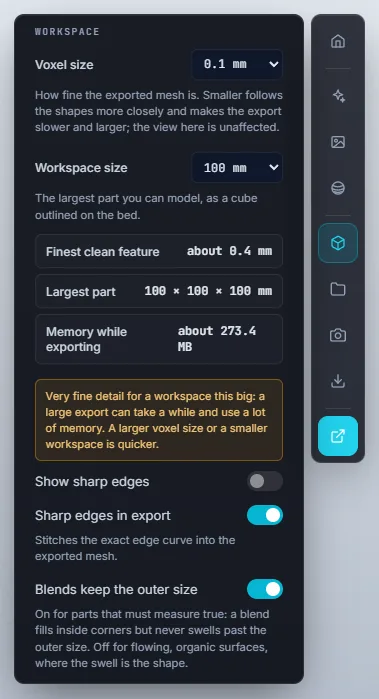
You usually set these once per design. They affect the exported mesh, not what you see while modelling.
- Voxel size (0.1, 0.25, 0.5, 1 or 2 mm; default 0.1): how finely the export follows your shapes. Smaller is more accurate but slower to export and gives larger files.
- Workspace size (50, 100, 150, 200 or 300 mm; default 100): the largest part you can model, drawn as a cube outline on the bed.
- Finest clean feature: grooves, walls and pins thinner than about four voxels come out rough. This shows that limit in mm.
- Largest part and Memory while exporting: what the current settings allow and need. A warning appears when a combination will be slow or memory-hungry.
- Show sharp edges draws the exact sharp-edge curves of your shapes, for checking.
- Sharp edges in export (on by default) stitches those exact edges into the exported mesh, so box edges and hole rims come out crisp.
- Blends keep the outer size (on by default): see Blend. This setting is saved with the project because it changes the shape.
Saving and opening projects
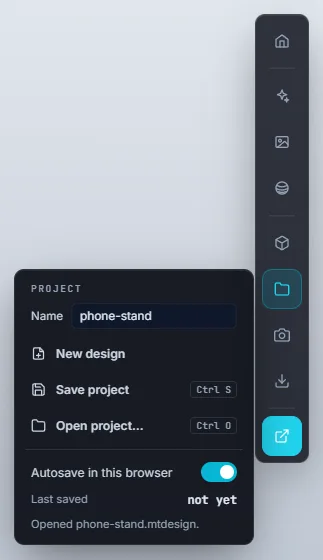
- Name: the project's name, used for every file it downloads.
- New design starts again from a single ball. Ctrl+Z brings the previous design back.
- Save project Ctrl+S downloads a
.mtdesignfile. It keeps every shape as an editable shape, so you can reopen and change the design later. (An STL can't be edited this way.) - Open project Ctrl+O opens a
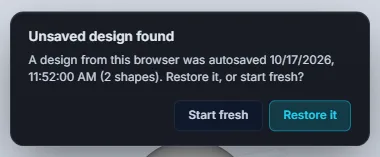
.mtdesignfile. You can also drag a project file onto the window. Older.mtsculptfiles open too. - Autosave in this browser (on by default) keeps your latest design in this browser's storage. Last saved shows when.
Saving an image
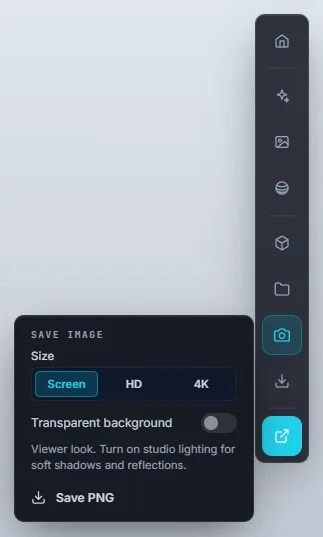
The camera button saves the current view as a PNG. Choose Screen (the size of the view), HD (1920 px on the long edge) or 4K (3840 px), and optionally a Transparent background for product shots and listings. With Studio lighting on, the image is rendered to full studio quality before it saves.
Downloading a mesh
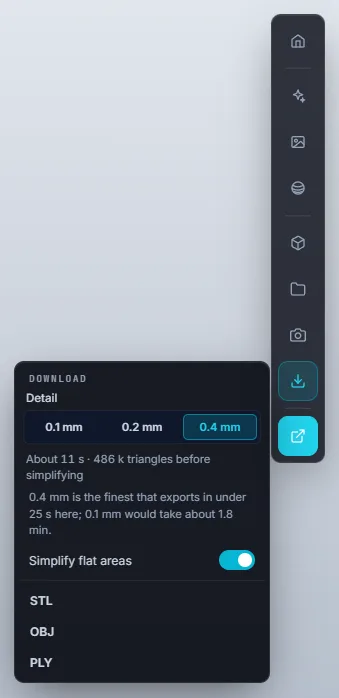
- Open Download mesh on the rail.
- Choose a Detail: your workspace voxel size, or 2× or 4× coarser. Each option shows roughly how long it will take and how many triangles it makes. Design preselects the finest one that exports in reasonable time.
- Leave Simplify flat areas on to merge flat regions into large triangles: the same part in a much smaller file. Curves keep their detail.
- Click STL, OBJ or PLY. The part is re-meshed into one watertight solid in millimetres and downloaded.
Check before printing
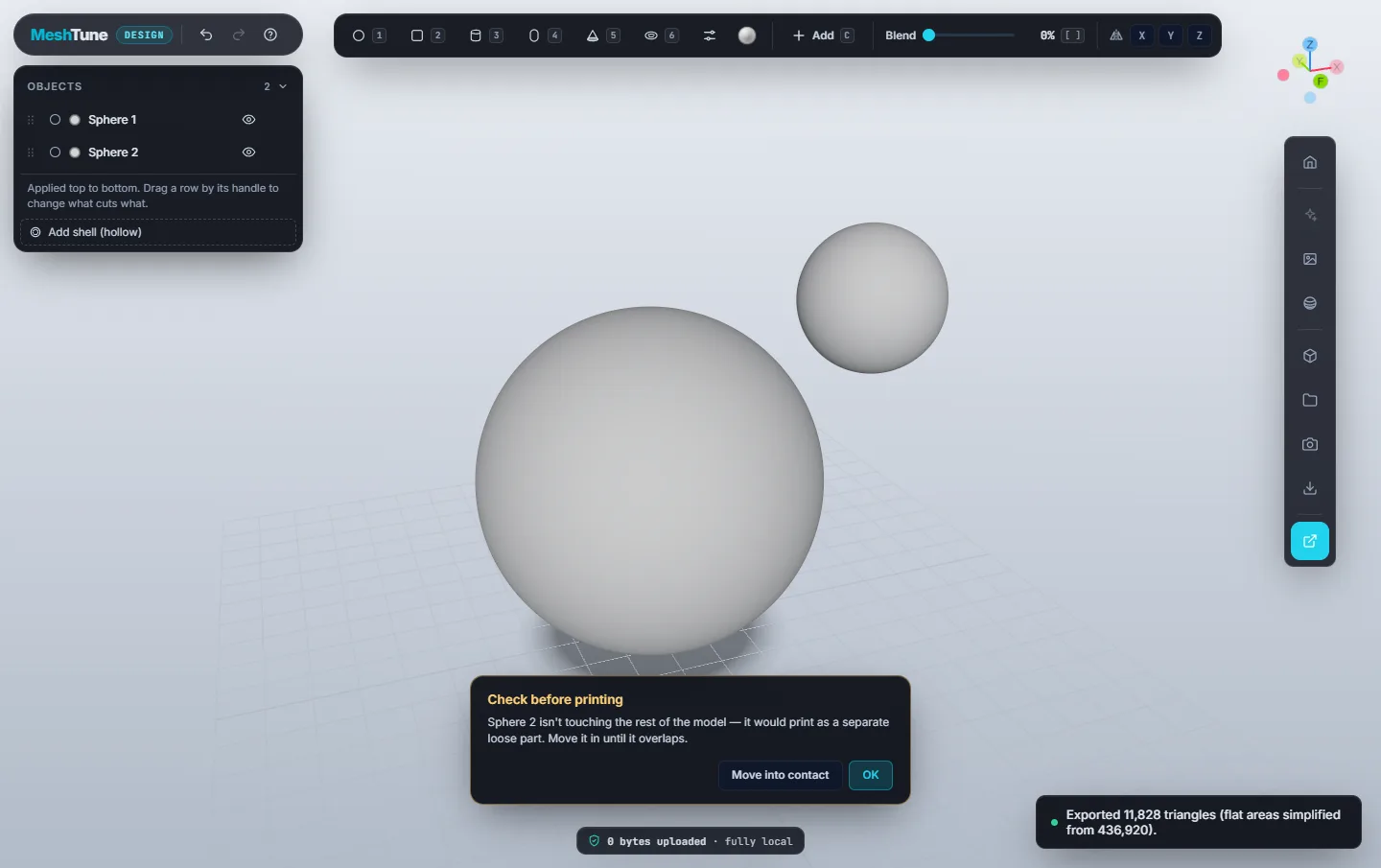
After each export, Design checks the mesh for problems that would spoil a print and names the shape responsible:
- A shape that isn't touching the rest of the part would print as a separate, loose piece.
- A shape that barely touches another makes a pinched, non-manifold join.
Click Move into contact to push each named shape into the part until it overlaps solidly, as one undoable step. Then export again.
Open in Viewer
The highlighted button at the bottom of the rail re-meshes your design into one watertight solid (using the Detail chosen in Download) and opens it in the MeshTune Viewer, facing front, the way you built it. The mesh is handed over inside your browser. Nothing is uploaded.
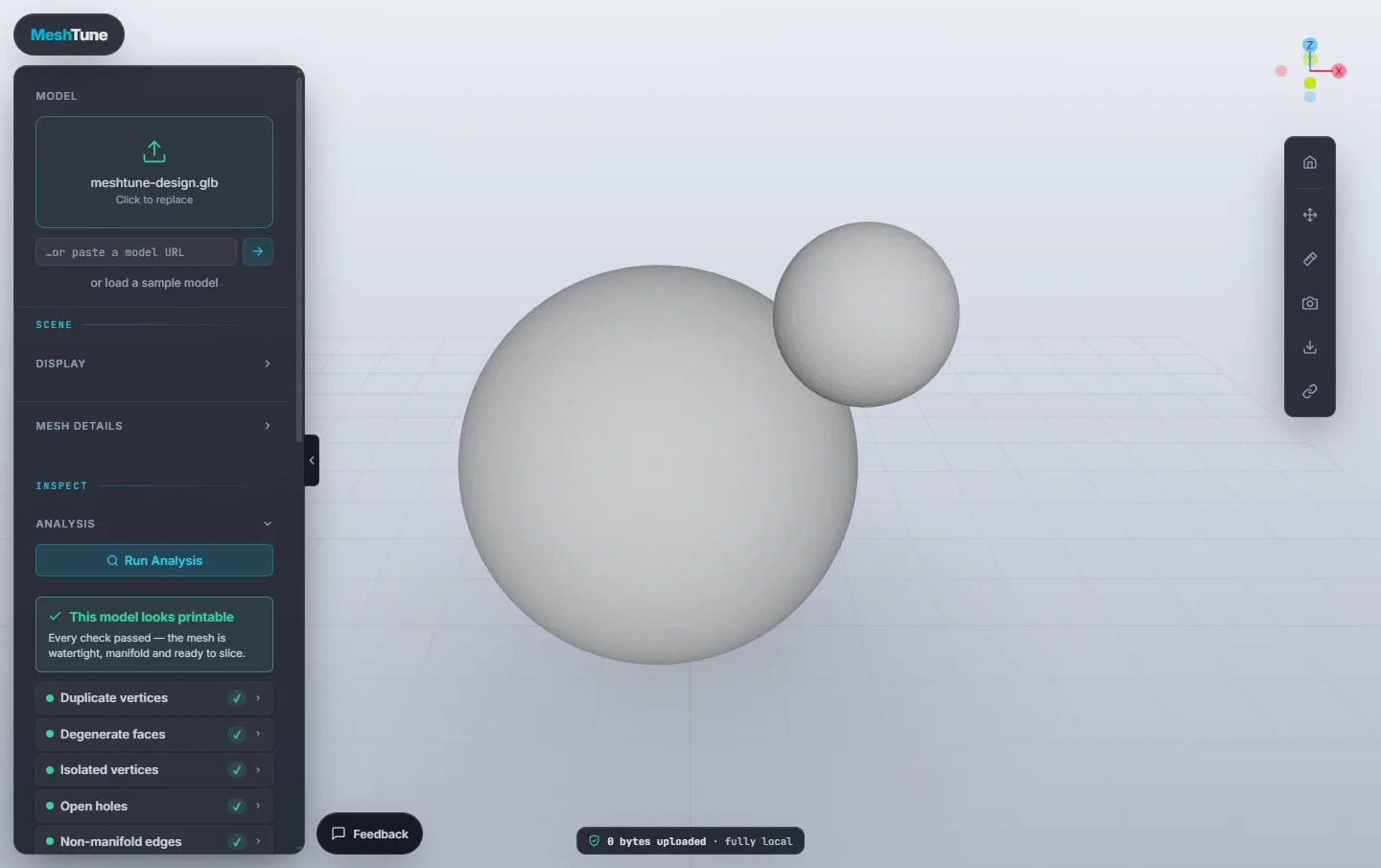
What to do in the Viewer:
- Run Analysis to confirm the mesh is watertight, manifold and ready to slice.
- Map wall thickness to find areas too thin to print.
- Find the best print orientation and check overhangs.
- Check it fits your printer's build volume, and estimate volume and mass for your material.
- Measure it, resize it, take a cross-section, and export STL, OBJ or PLY.
Every Viewer tool is covered step by step in the Viewer guide. To keep editing, go back to Design. Your design is still there (autosaved).
Keyboard shortcuts
Shortcuts don't fire while you are typing in a field. Click the model to return focus to it.
| Key | Action |
|---|---|
| 1–6 | Sphere, Box, Cylinder, Capsule, Cone, Torus |
| C | Switch between Add and Cut |
| [ ] | Blend down / up 5% (Shift: 10%) |
| M | Toggle mirror across X |
| W E R | Move, Rotate, Resize handles (shape live) |
| B | Sit on bed (shape live) |
| Enter | Apply the live shape |
| Esc | Discard the live shape; with nothing live, put the shape tool down |
| Delete / Backspace | Delete the shape being edited |
| Shift (hold) | Snap to 1 mm and 15° while dragging |
| F | Frame the selection, or the whole part |
| Numpad 1 3 7 | Front, right, top view (Ctrl: back, left, bottom) |
| ? | Show or hide the controls card |
| Ctrl+Z | Undo |
| Ctrl+Y / Ctrl+Shift+Z | Redo |
| Ctrl+D | Duplicate the live shape |
| Ctrl+S | Save project |
| Ctrl+O | Open project |
| F2 | Rename the focused Objects row |
| Alt+↑/↓ | Move the focused Objects row up or down |
On a Mac, use Cmd wherever this table says Ctrl.
Tips and troubleshooting
My cut doesn't show
A cut only removes material from shapes above it in Objects. Drag the cut below the shapes it should cut through.
A blend got much bigger when I scaled the shape
Blend is a percentage of the shape's size. For a fixed fillet, type a radius in Blend mm in the Transform panel.
My part measures larger than I typed
Check that Blends keep the outer size is on in Workspace. With it off, blends can swell past the shapes' outer faces.
The export is slow or runs out of memory
Choose a coarser Detail in Download, or a larger Voxel size or smaller Workspace size in Workspace. The Workspace panel shows the memory an export will need before you start.
Small details come out rough
Features thinner than about four voxels can't be reproduced cleanly. Check Finest clean feature in Workspace and pick a smaller voxel size, or make the feature thicker.
A part fell off in the slicer
That shape wasn't touching the rest of the model. Export again and use Move into contact on the print check, or overlap the shapes by at least half a millimetre.
The hotkeys stopped working
A text field or slider probably has focus. Click on the model and try again.
Can I open an STL in Design?
No. Design builds parts from shapes, and it opens only its own .mtdesign projects. To check, repair, measure or resize an existing STL, OBJ, PLY or STEP file, open it in the Viewer.
I lost my work
If autosave was on, reopening Design in the same browser offers Restore it. For anything important, save a .mtdesign project file as well.
Start designing
Open Design and place your first shape. It's free, nothing is installed, and nothing is uploaded.