What the Viewer is for
Most print failures can be seen in the file before you slice it: a hole in the surface, a wall too thin to print, an overhang with nothing under it, a part bigger than your printer. The Viewer finds these, fixes the ones a mesh repair can fix, and gives you the numbers for the rest: volume, weight, cost, print time and size.
It works on any mesh, whether you made it, downloaded it or scanned it. To make a part from shapes, use Design. Its Open in Viewer button sends a finished design straight here.
What you need
- A laptop or desktop with a current browser such as Chrome, Edge or Firefox. Wall thickness and print orientation use your graphics card (WebGPU) when it is available and fall back to the processor when it isn't.
- A mouse is recommended for orbiting and picking points.
Nothing is uploaded. Your file is read, analysed, repaired and exported inside your browser tab. The 0 bytes uploaded badge at the bottom of the screen is a reminder. The only way a model leaves your computer is if you attach it to a feedback report yourself.
The screen at a glance
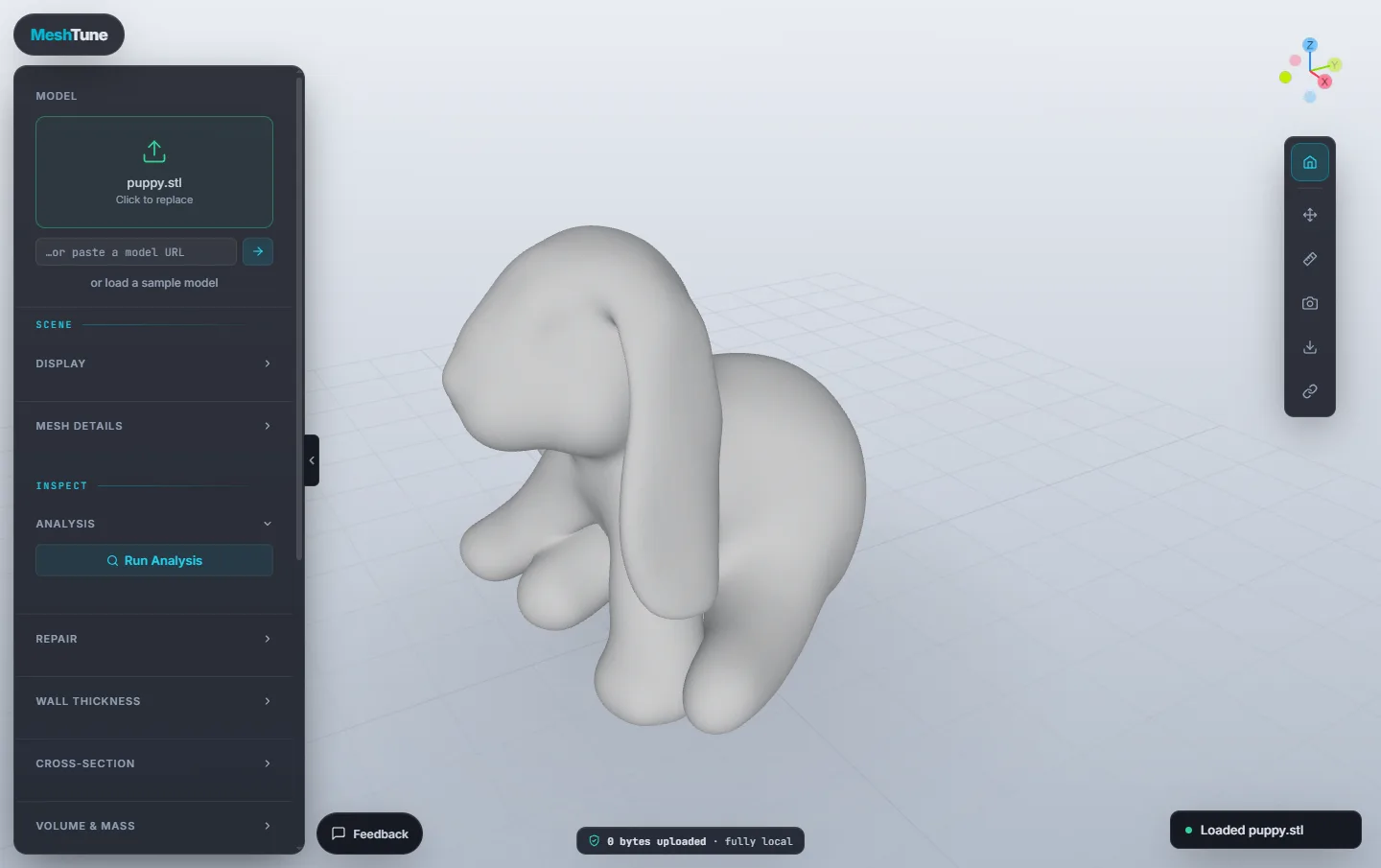
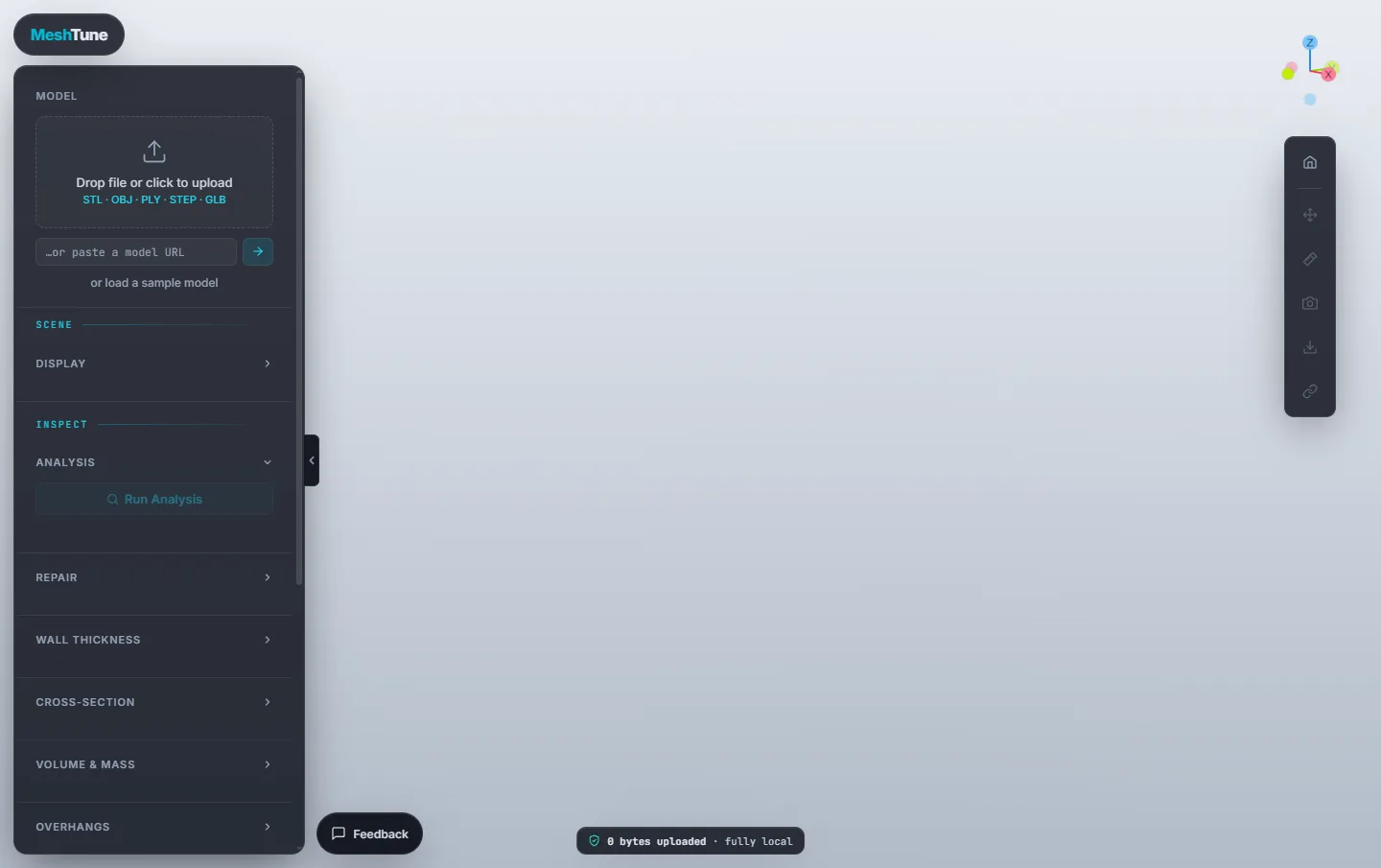
- Left — the sidebar. Every panel, in the order you usually need them: Model; Scene (Display, Mesh Details); Inspect (Analysis, Repair, Wall Thickness, Cross-Section, Volume & Mass, Overhangs); Prepare (Placement, Print Orientation, Build Volume, Resize); and Automate (Python Script). Click a panel's title to open or fold it. The tab on its right edge hides the whole sidebar.
- Top right — the axis widget. Shows which way X (red), Y (green) and Z (blue) point. Click an axis to look along it.
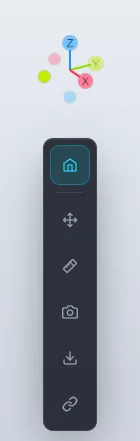
- Right — the tool rail. From top to bottom: Reset camera, Transform, Measure, Save screenshot, Export and Share link.
- Bottom — the privacy badge in the centre and the Feedback button on the left.
Quick start: check a model
- Drop your file on the Model panel (or anywhere on the window), or click it to choose one. No file to hand? Click or load a sample model.
- Open Analysis and click Run Analysis.
- If it reports problems, click Repair & make printable.
- Run Wall Thickness with your nozzle's minimum wall, and check Overhangs.
- In Build Volume, pick your printer to check the part fits.
- Click Export on the rail and choose STL.
Opening a model
| Format | What's supported |
|---|---|
| STL | Binary and ASCII. |
| OBJ | Drop the .obj together with its .mtl and texture images to keep materials and textures. |
| PLY | Meshes with vertex colours, and point clouds (see below). |
| STEP, IGES | CAD files (.step, .stp, .iges, .igs), turned into a mesh in your browser. |
| GLB, glTF | Materials are kept, and the model is turned to Z-up. Draco- and meshopt-compressed files aren't supported yet. |
- From a link. Paste a direct file URL into …or paste a model URL and press Enter. It works with hosts that allow it (GitHub, your own server, S3 or R2 buckets). Google Drive and Dropbox share pages can't be read this way.
- Very large meshes. Analysis works up to 5 million faces. For a bigger mesh the Viewer offers to Reduce mesh to 4 million faces with a quality-preserving decimation, or to keep it view only.
- Point clouds. A PLY with points but no faces asks whether to Reconstruct surface (a watertight Poisson mesh) or View as points.
- From Design and Scan. Open in Viewer in Design, and the Scan app's handoff, open their result here directly, still without uploading anything.
Moving around
| To do this | Do this |
|---|---|
| Orbit | Left-drag |
| Pan | Right-drag |
| Zoom | Mouse wheel (or middle-drag) |
| Back to the starting view | Reset camera, at the top of the rail |
| Look along an axis | Click an axis on the axis widget |
The scene is Z-up, the convention 3D printers and slicers use: the bed is the X–Y plane and Z is height.
Display and mesh details
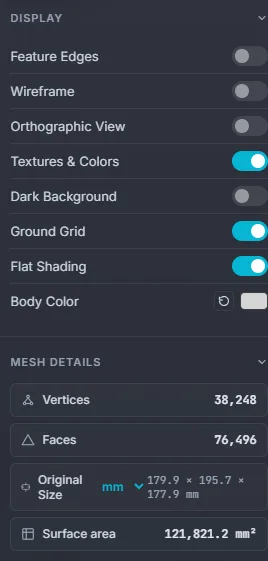
- Feature Edges outlines sharp edges, like a CAD drawing.
- Wireframe shows every triangle, which is useful for judging mesh density.
- Orthographic View removes perspective, for measuring by eye.
- Textures & Colors shows the file's own textures and vertex colours.
- Dark Background, Ground Grid and Flat Shading change the look. Body Color sets the model's colour.
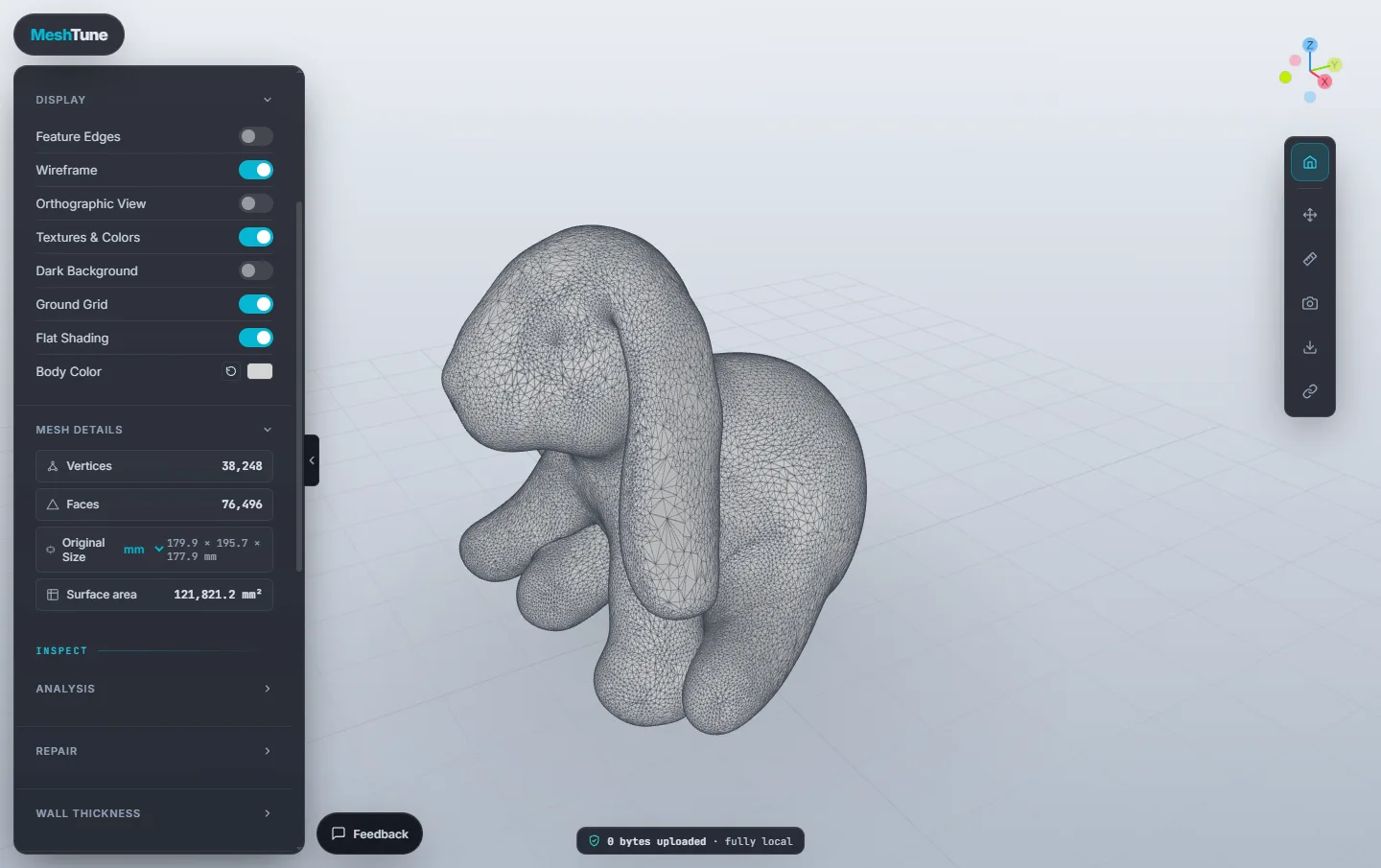
Mesh Details lists the vertex and face counts, the original size in the file's units, and the total surface area. Files don't say what unit they use. The Viewer assumes millimetres, which is what almost every printing file uses, and the unit selector next to Original Size lets you say otherwise (cm, m, in).
Analysis
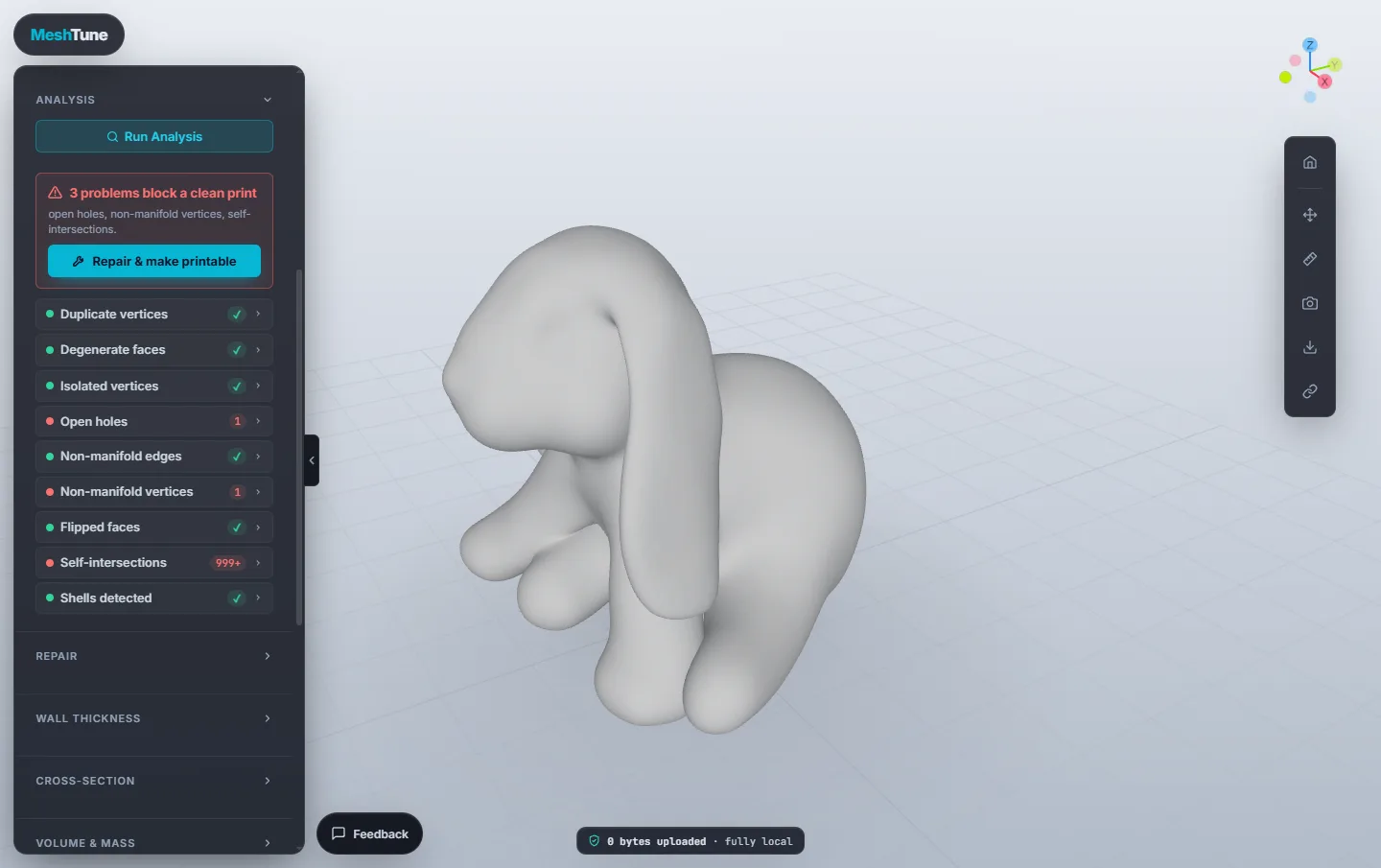
Run Analysis runs nine checks on the mesh and gives a verdict at the top: either This model looks printable or the number of problems that would block a clean print.
| Check | What it means |
|---|---|
| Duplicate vertices | Several vertices at the same position. |
| Degenerate faces | Zero-area triangles, which can cause slicing artefacts. |
| Isolated vertices | Vertices not connected to any face. |
| Open holes | Gaps in the surface. Slicers need a closed (watertight) mesh. |
| Non-manifold edges | Edges shared by more than two faces. |
| Non-manifold vertices | "Bowtie" vertices where separate fans of faces touch at one point. |
| Flipped faces | Faces wound the wrong way, so their normals point inward. |
| Self-intersections | Faces that pass through each other. |
| Shells detected | Disconnected pieces. A printable part is usually one shell. |
Click a check to list what it found, and use the magnifier on an item to fly the camera to it. The problem is highlighted on the model.
Repair
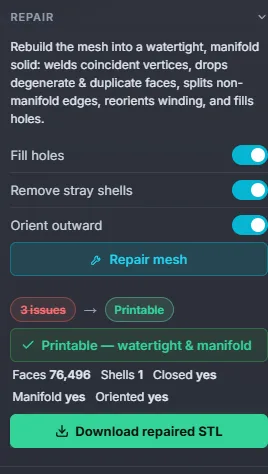
Repair mesh (or Repair & make printable in the Analysis verdict) rebuilds the mesh into a watertight, manifold solid. It welds coincident vertices, drops degenerate and duplicate faces, splits non-manifold edges, fixes the winding and fills holes. Three switches control the steps: Fill holes, Remove stray shells and Orient outward.
The result card shows what changed and whether the mesh is now closed, manifold and oriented. Download repaired STL saves it.
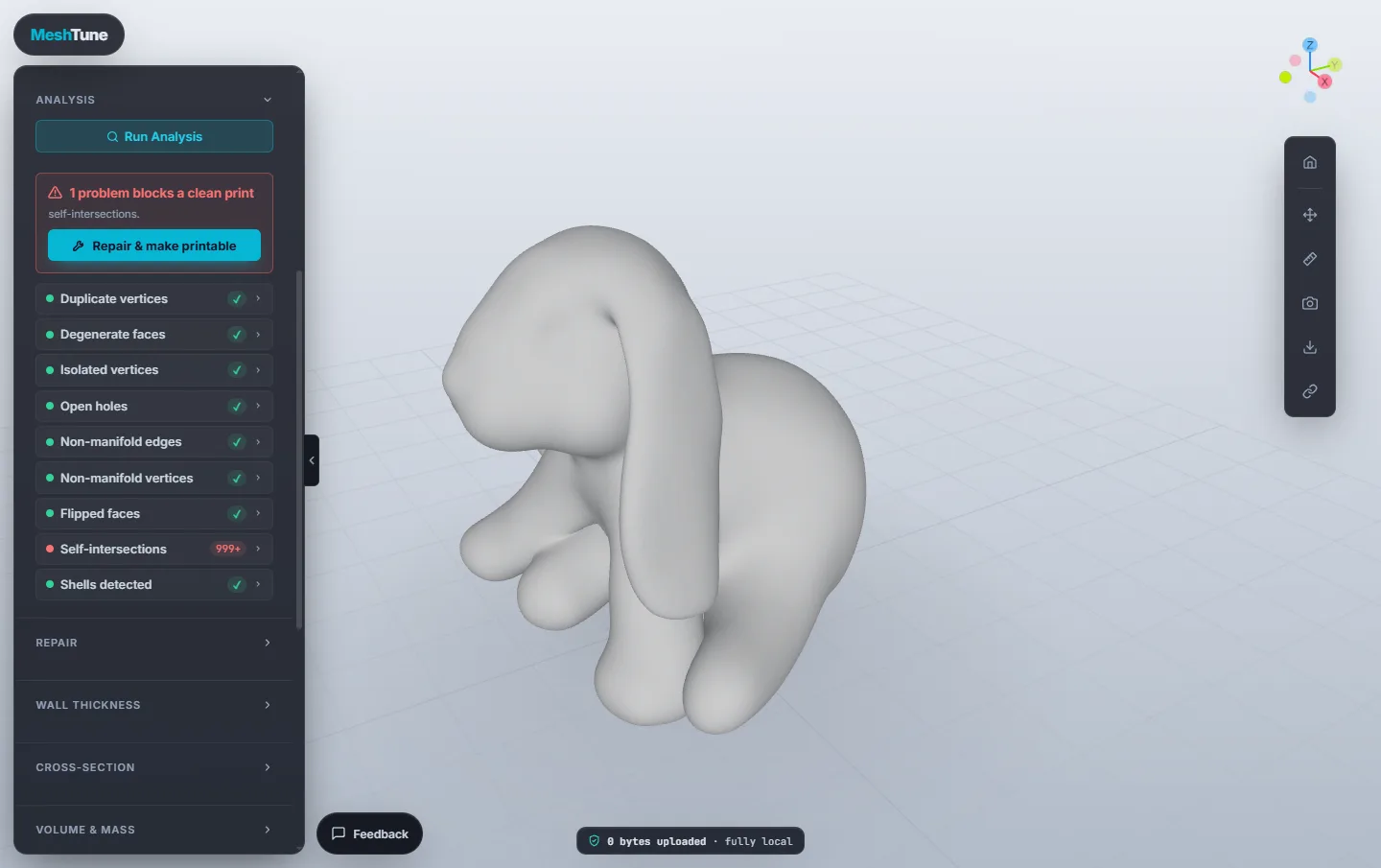
Self-intersection repair isn't available yet. Analysis finds self-intersections (surfaces that pass through each other), but Repair doesn't change them yet. They often come from two parts of a model joined by overlapping them, like the ears pressing into the body here. The mesh can still be watertight and manifold, as the repair card says. Most slicers merge overlaps like these when slicing, so check the sliced preview where Analysis points.
Wall thickness
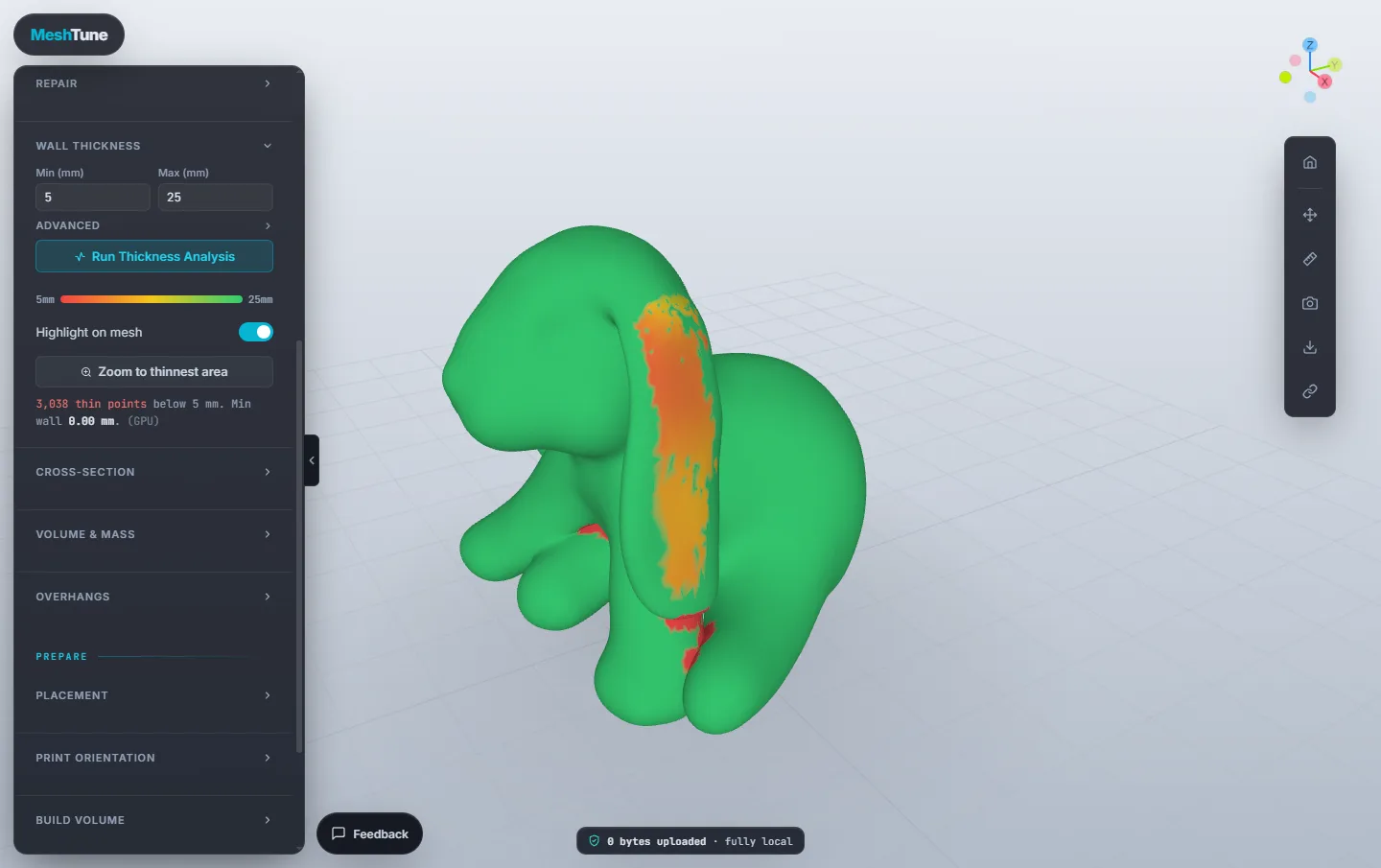
Wall Thickness measures how thick the part is at every point and paints it as a heat map. Set Min to the thinnest wall your printer can make (for a 0.4 mm nozzle, about 0.8 to 1 mm) and Max to where you stop caring, then click Run Thickness Analysis.
- Red is at or below Min, green at or above Max, with a gradient in between. The summary counts the thin points and gives the thinnest wall found.
- Zoom to thinnest area flies the camera to the worst spot. Highlight on mesh toggles the colours.
- Advanced holds finer controls: the wall angle, ignoring tiny islands, the colour mode, refinement, smoothing and automatic orientation fixing.
The picture at the top of this guide uses 5 to 25 mm because the sample is 180 mm tall. Match the range to your part. A contact point between two touching surfaces (like this ear on the body) measures as zero thickness.
Cross-section
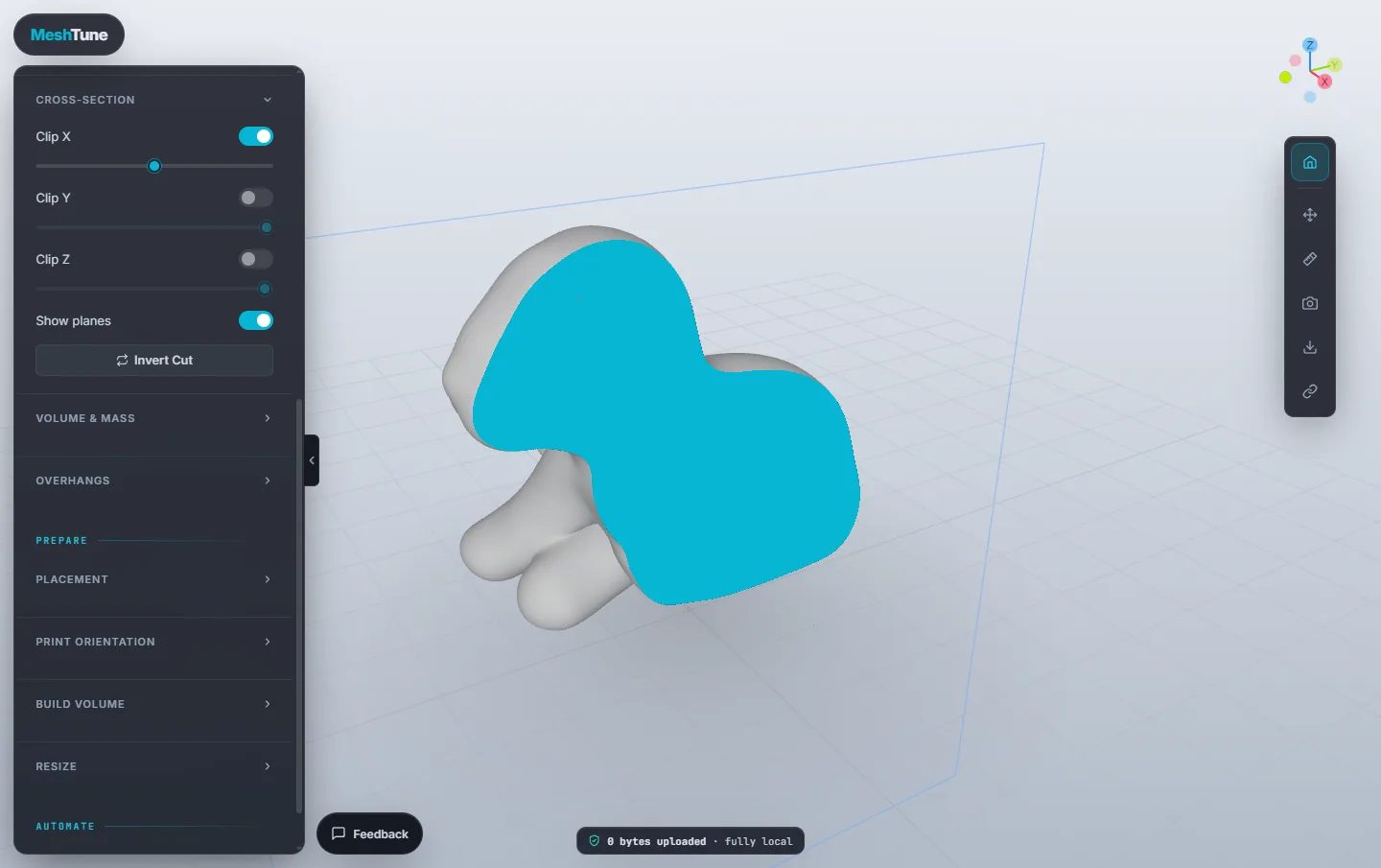
Turn on Clip X, Clip Y or Clip Z and drag the slider under it to slice through the part. Show planes draws the cutting planes and Invert Cut keeps the other side. Use it to look for hidden voids, check internal walls, or see how solid a part is. Measuring works on the cut face too.
Volume, mass and cost
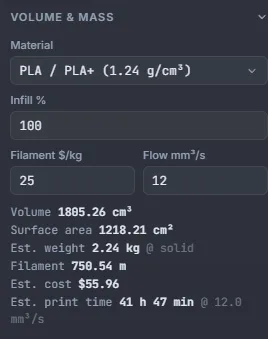
Volume & Mass gives the part's volume and surface area, and from your Material and Infill % estimates its weight and the filament length. Add the spool price (Filament $/kg) for a cost, and your printer's volumetric flow (Flow mm³/s) for a rough print time.
Materials include PLA, PETG, ABS, ASA, TPU, nylon, carbon-fibre nylon, polycarbonate, polypropylene, HIPS, PVA and cured resin. The densities are typical values, so real spools vary by brand and colour.
Overhangs
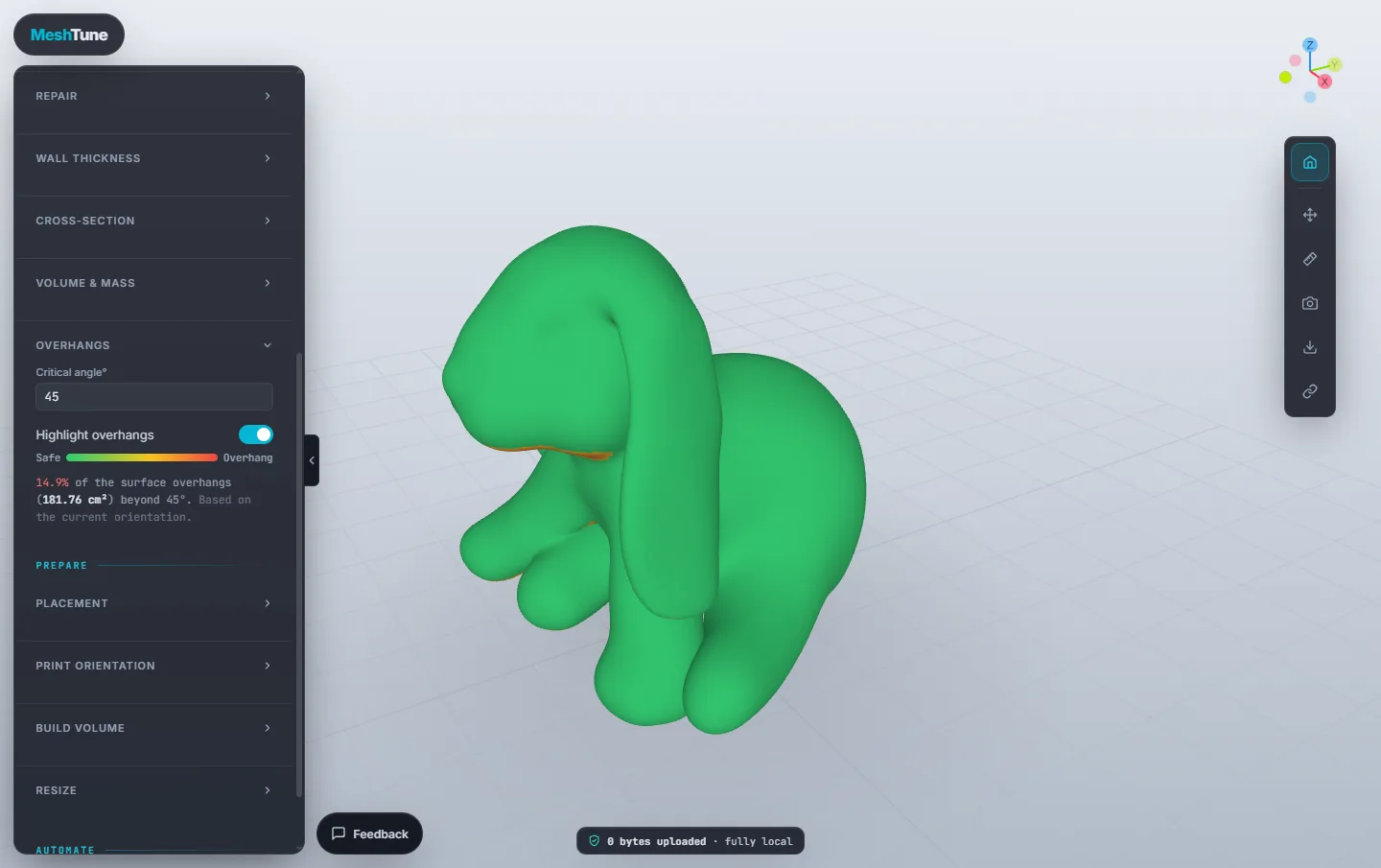
Overhangs colours every face by how steeply it hangs over empty space. Faces past the Critical angle (45° by default, a good rule for most FDM printers) would need support. The summary gives the share of the surface that overhangs. It depends on how the part sits, so check it again after changing the orientation.
Placement
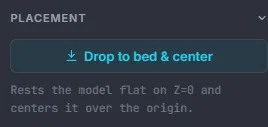
Drop to bed & center rests the model flat on Z = 0 and centres it over the origin, the way a slicer places it.
Print orientation
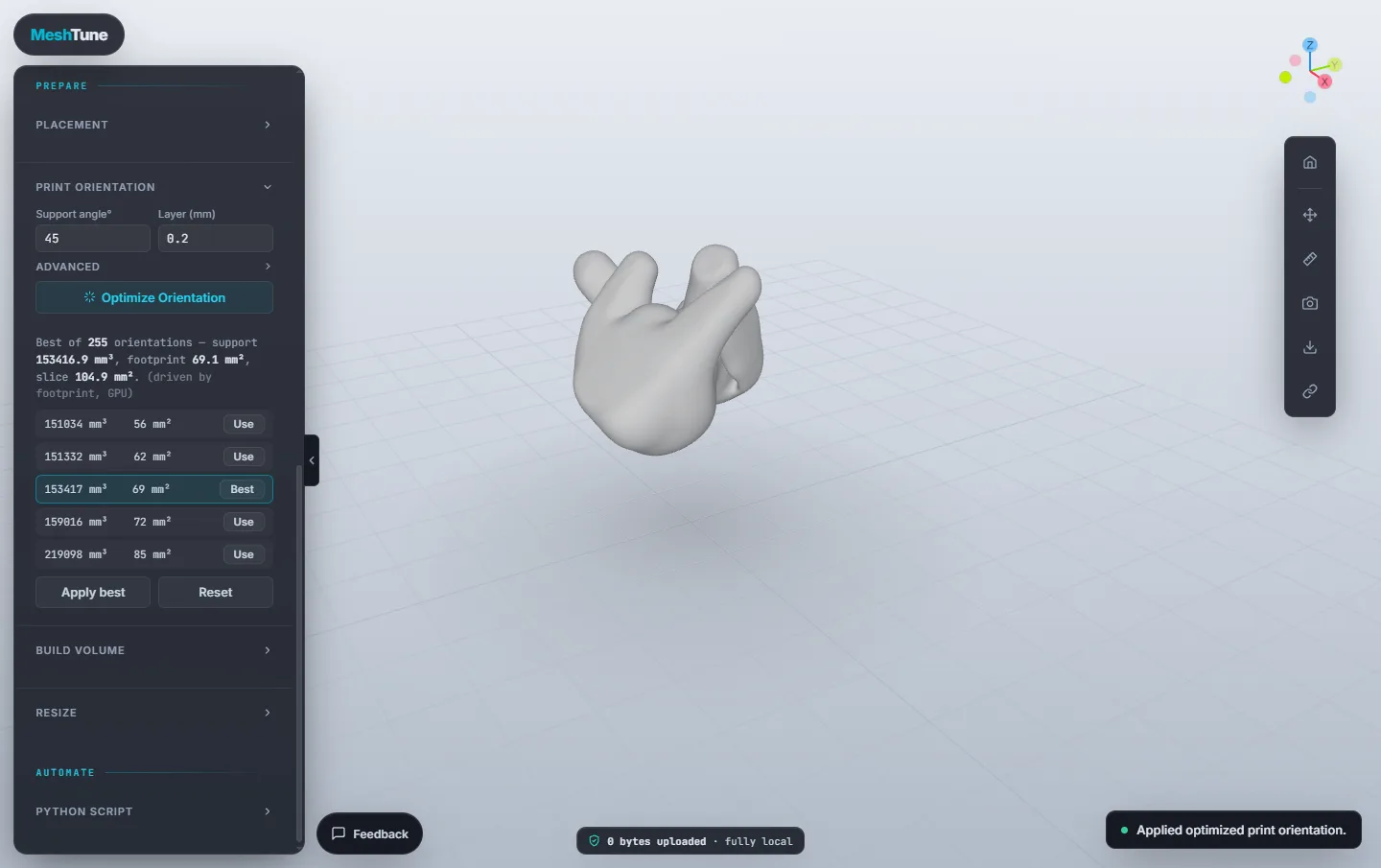
Optimize Orientation tries a few hundred ways to stand the part on the bed and weighs two things for each: how much support it would need, and how much of the part touches the bed (for adhesion). It starts from the orientation with the least support and accepts a little more support only for clearly more bed contact. If the part is already about as good as the best, it stays as it is. Set the Support angle and Layer height to match your slicer. Click Use on any candidate, or Apply best. Reset puts the part back the way it was.
Advanced sets that trade-off (Min area gain %, Max vol penalty %, 5% each by default), how many candidates to list, and whether bed contact is judged by the plate footprint or the first-layer slice.
Build volume
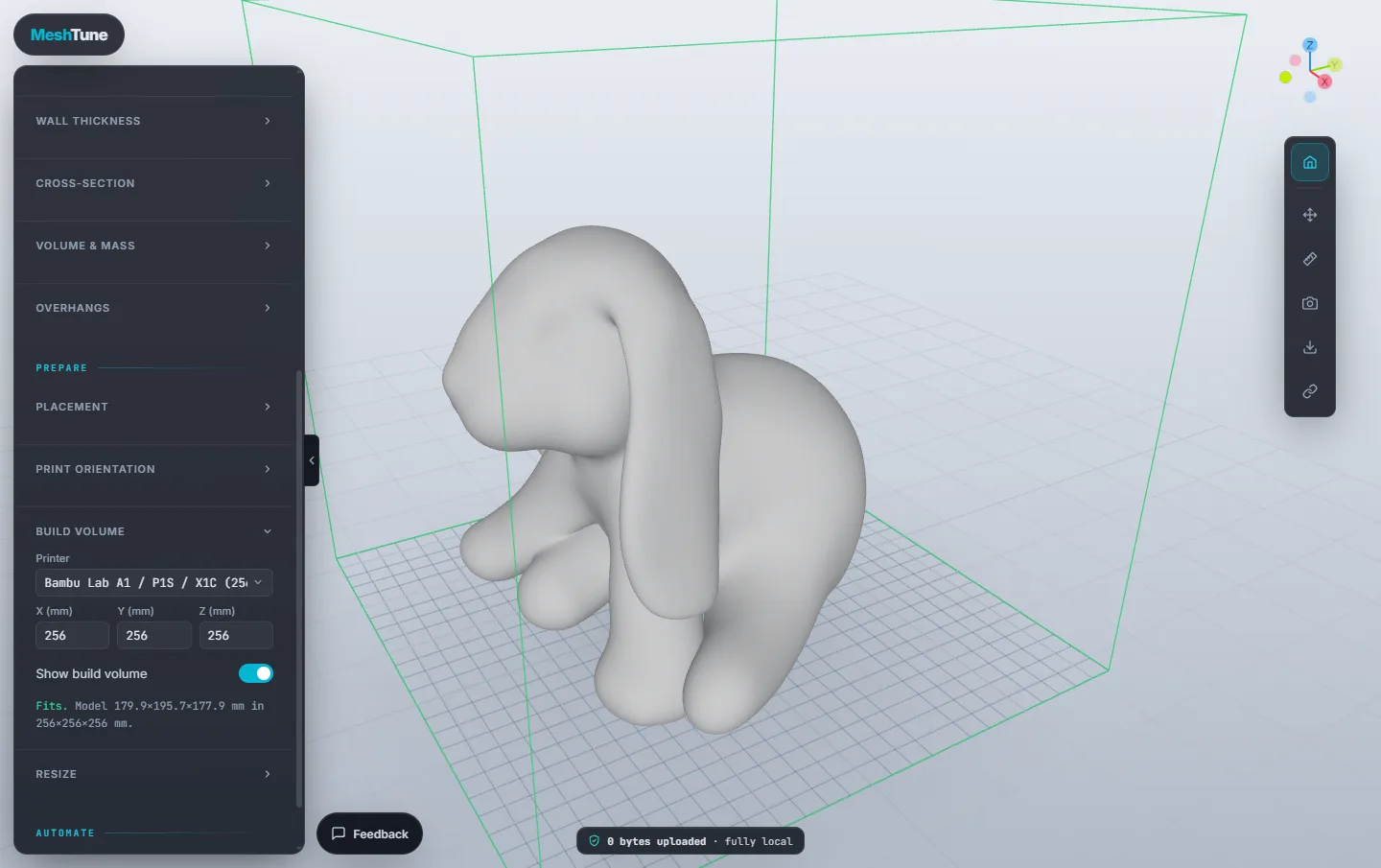
Pick your Printer (Bambu Lab, Prusa and Creality models are listed) or choose Custom… and type the X, Y and Z size. Show build volume draws the printable box around the part, and the summary says whether it fits or by how much it doesn't.
Resize
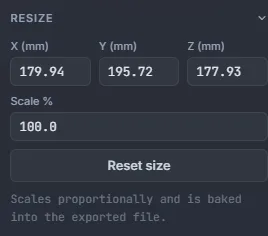
Type a new size for any axis in millimetres, or a Scale %. The part scales proportionally, so the other two sizes follow. The new size is used by every panel and is saved in the exported file. Reset size goes back to the original.
Measuring
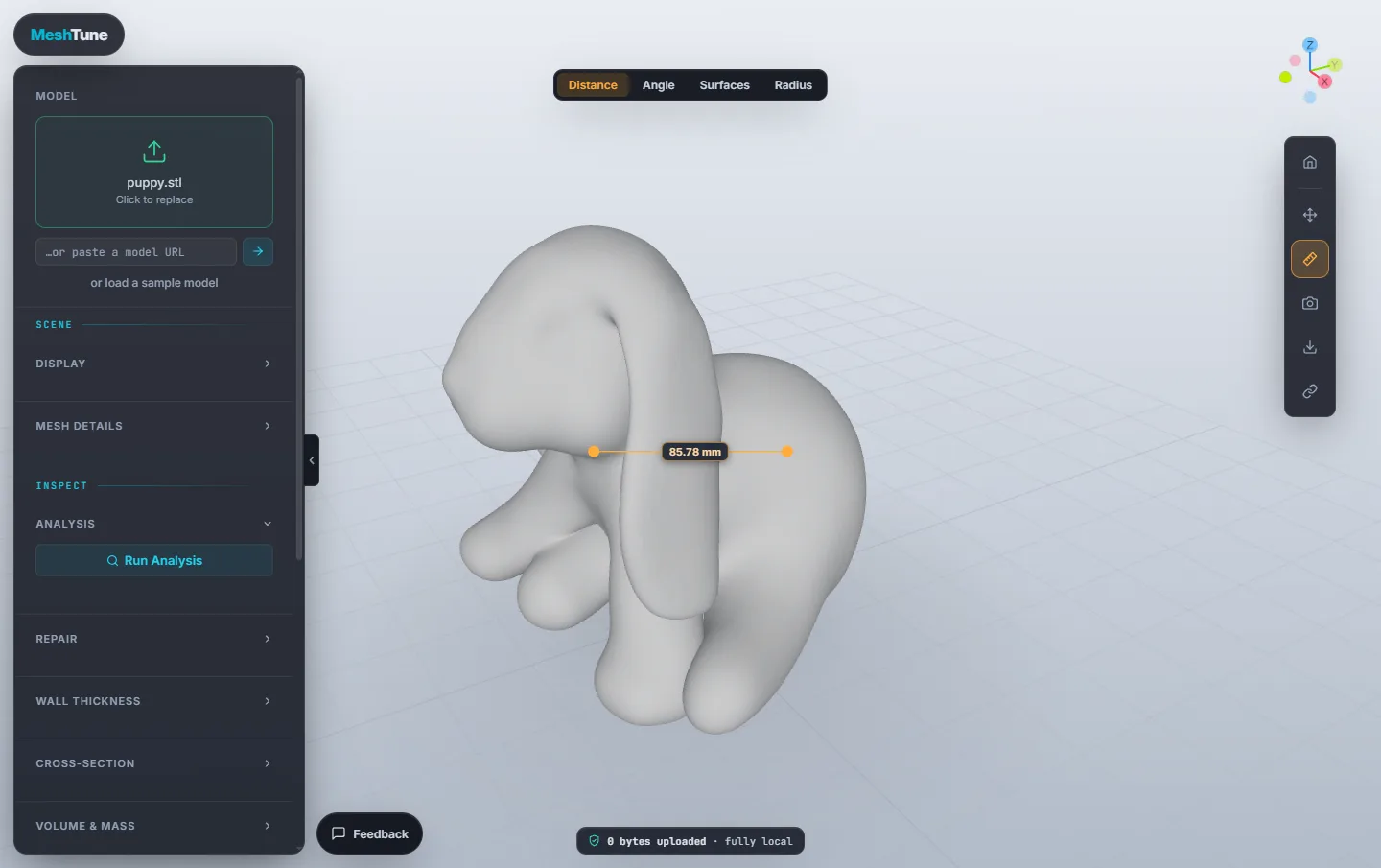
Click Measure on the rail, choose a mode, then click points on the model:
- Distance: two points, in millimetres.
- Angle: three points. The angle is at the middle one.
- Surfaces: two surfaces. The angle between them is shown both ways (for example 60° / 120°).
- Radius: three points on an edge or a hole. The circle through them gives the radius.
Esc clears the measurements. Click Measure again to finish.
Moving, rotating and scaling
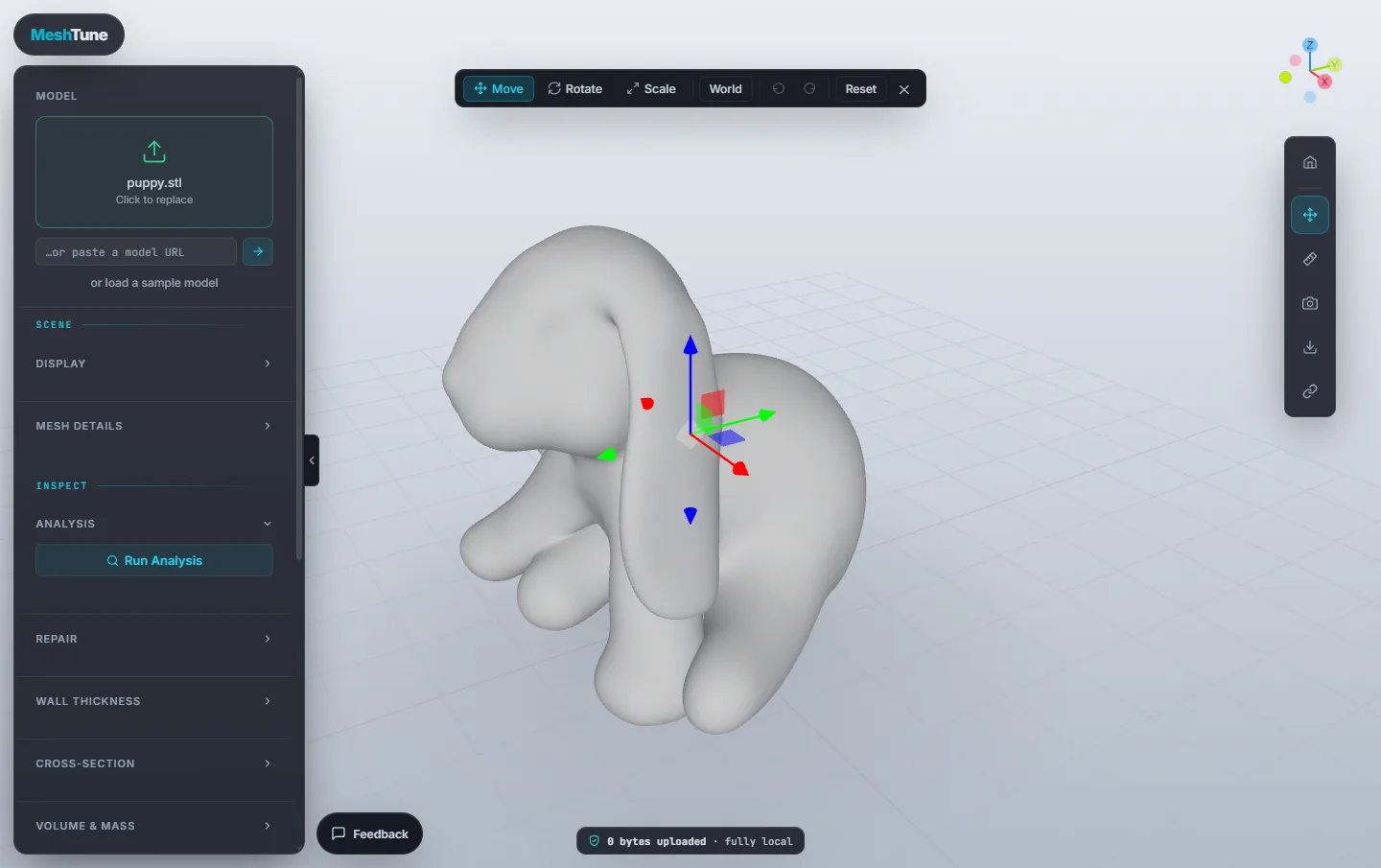
Transform on the rail puts handles on the model. Use Move T, Rotate R or Scale S, and switch the handles between World and Local axes with X. Ctrl+Z and Ctrl+Y undo and redo, Reset returns to the original transform, and Esc closes the tool.
Export, screenshots and share links
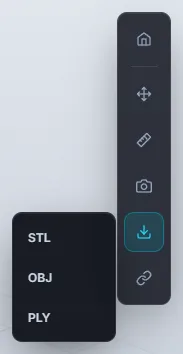
- Export saves the model as STL, OBJ or PLY, including any transform and resize.
- Save screenshot saves the current view as a PNG with a transparent background.
- Share link copies a link to this view: the camera, the display settings and the units. Your file isn't in it. The person you send it to opens the same view of their own copy. If you loaded the model from a URL, the link includes that URL and the model's pose, so it opens the same model.
Python scripting
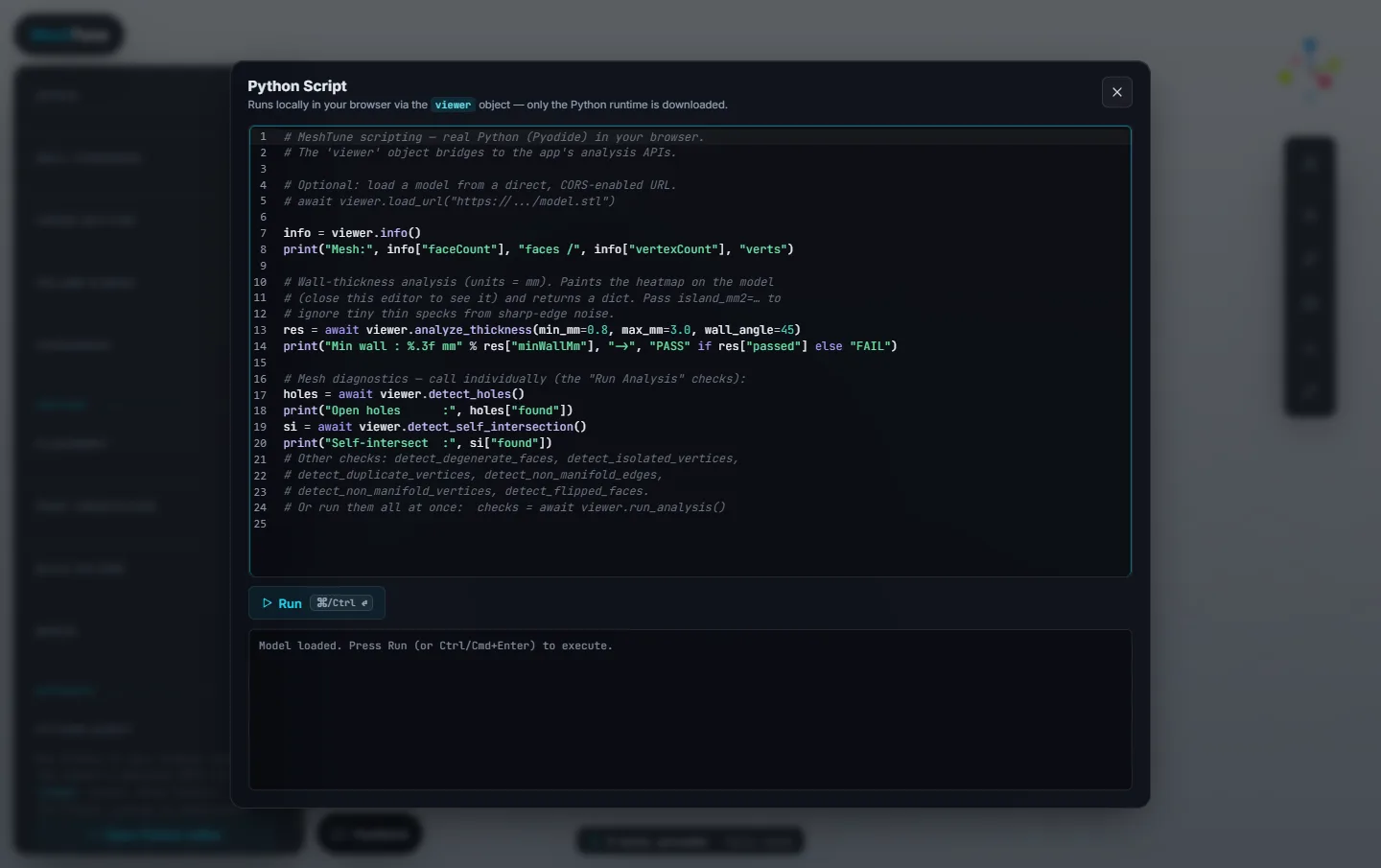
Open Python editor (under Automate) runs real Python in your browser
against the same tools as the panels, through a viewer object: load a model, run the
checks, analyse thickness, overhangs, volume and fit, resize, export and take screenshots. Only the
Python runtime is downloaded, the first time you open it. Press Ctrl+Enter
to run. Every function is documented in the Scripting API reference.
Keyboard shortcuts
| Key | Action |
|---|---|
| T R S | Move, Rotate, Scale (Transform open) |
| X | Switch the handles between World and Local (Transform open) |
| Ctrl+Z | Undo a transform |
| Ctrl+Y / Ctrl+Shift+Z | Redo a transform |
| Esc | Close Transform, or clear measurements |
| Enter | Load the pasted model URL |
| Ctrl+Enter | Run the script (Python editor) |
On a Mac, use Cmd wherever this table says Ctrl.
Tips and troubleshooting
My model is tiny, or huge
The file was probably made in another unit. Change the unit next to Original Size in Mesh Details, or use Resize.
A model URL won't load
The host has to allow other sites to read the file. Use a direct link (on GitHub, the Raw link). Google Drive and Dropbox share pages don't allow it.
Analysis is greyed out
The mesh is over 5 million faces and was opened view-only. Load it again and choose Reduce mesh.
Repair says printable, but Analysis still lists a problem
That is self-intersections. Analysis finds them, but repairing them isn't available yet. See Repair.
The whole part shows as thin, or as all green
The thickness range doesn't suit the part's size. Set Min and Max in millimetres for this part and run it again.
I want to change the shape, not just check it
Model it in Design, which builds parts from shapes, and send it here with Open in Viewer.
Something doesn't work
Use the Feedback button at the bottom left. It goes straight to the developer. Your model is only sent if you choose to attach it.
Check your model
Open the Viewer and drop in a file. It's free, nothing is installed, and nothing is uploaded.